 Chatfuel
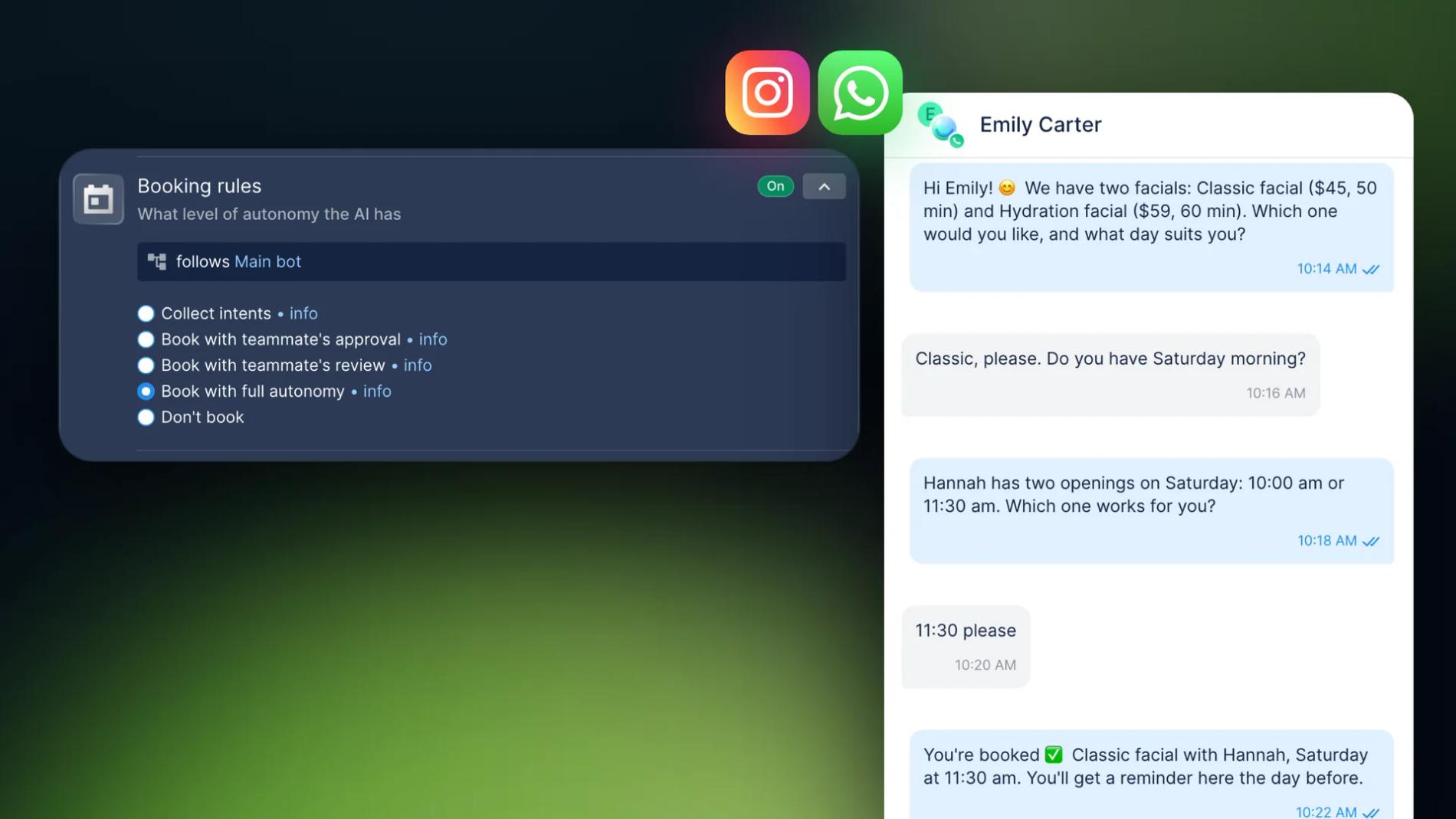
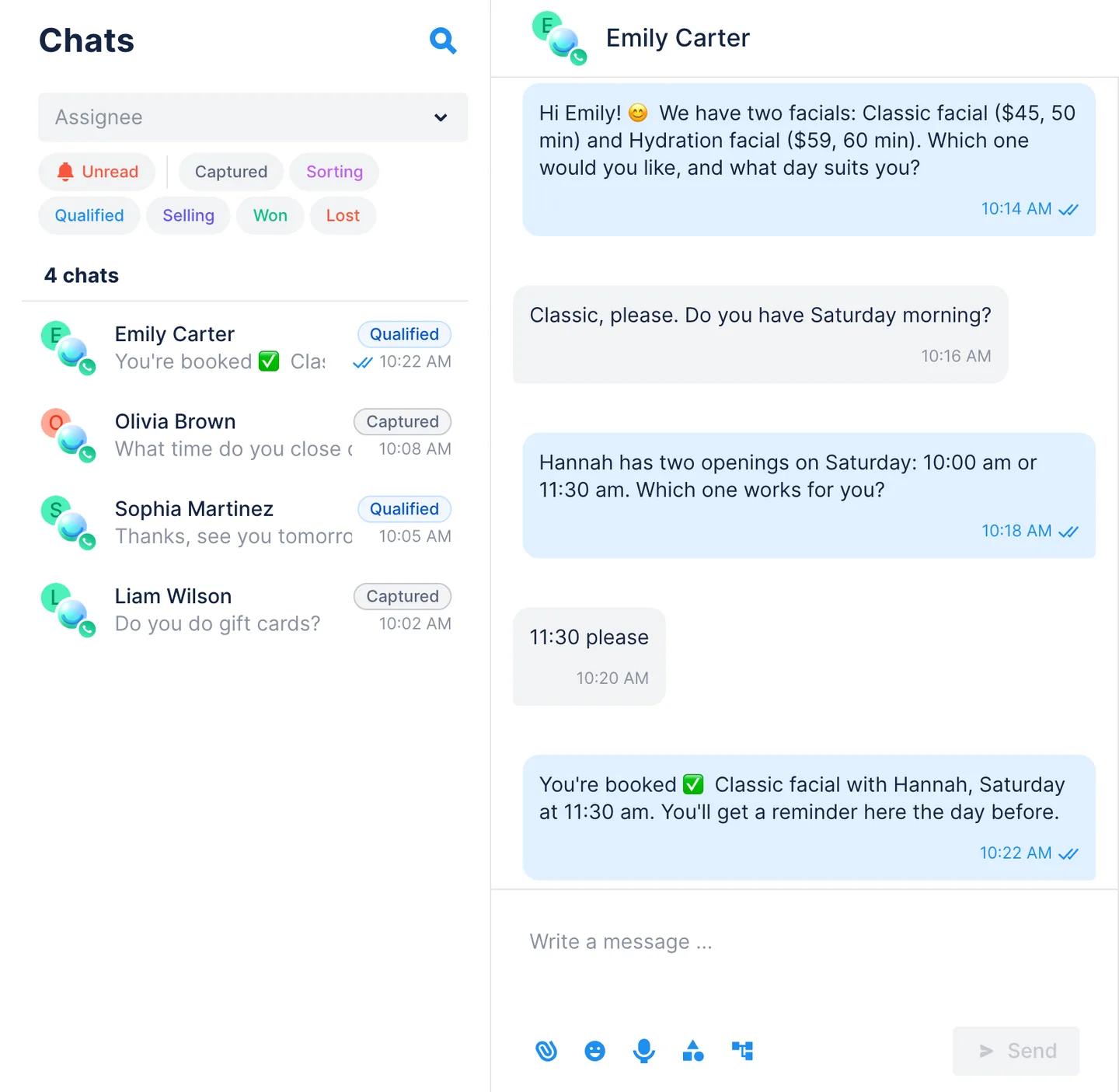
A client writes "Do you have Saturday morning?" and waits. If nobody answers for an hour, they book somewhere else. If you answer with a booking link, they open a form, pick a service again, type their name and phone, and some of them close the tab halfway. Booking in the chat skips all of that. The AI Agent checks who is free, offers two or three times and books the one the client picks. The client never leaves the conversation.
Below is the Chatfuel setup for WhatsApp and Instagram: services and specialists, how much the AI decides on its own, reminders, and what your team still does itself.
Why book in the chat instead of sending a booking link
People already ask about times in WhatsApp and Instagram DMs. If you answer in the same chat, they don't have to go anywhere else.
- Fewer drop-offs. There's no page to load and no form to fill in. The client answers a question or two and is booked.
- Answers at any hour. The AI Agent replies at night and on weekends, when nobody on your team is at their phone.
- No double booking. It offers only slots that are free in your Calendar and inside each specialist's working hours.
- The chat window is open. On WhatsApp you can reply freely for 24 hours after the client's last message; after that, you can send only approved templates (Meta's rules). Instagram has a similar 24-hour window (Meta's Instagram messaging docs). If you book while the client is still in the chat, neither limit gets in the way.
What the AI Agent does when someone asks to book
Chatfuel's appointment booking works the same way in every chat:
- Finds the service. It asks what the client wants, or picks it from what they wrote, and quotes the price and duration from your catalog.
- Checks real availability. It looks at the specialists who provide that service and offers only free slots inside their working hours. Slots are 30 minutes apart. If the requested time is taken, it suggests the next opening.
- Books and confirms. The booking appears in your Calendar with the client, the service and the specialist, and the AI Agent confirms the time in the chat.
- Reminds the client. On WhatsApp, the client gets a confirmation, then reminders a day before and two hours before.
How to set it up in Chatfuel
- Add your services. Open AI Knowledge Base › Catalog, switch to Services and click New service. Fill in Name, Price, Duration and Details. The AI Agent quotes the price and uses the duration to find slots.
- Add your specialists. In AI Knowledge Base › Specialists, click Add specialist. On Description, add the name and a short bio. On Working hours, set the days and shifts; they can't go beyond your business hours (AI Knowledge Base › General information › Open hours). On Services, pick the services this person provides. The AI Agent offers a specialist only for the services they provide (how to set up the Calendar).
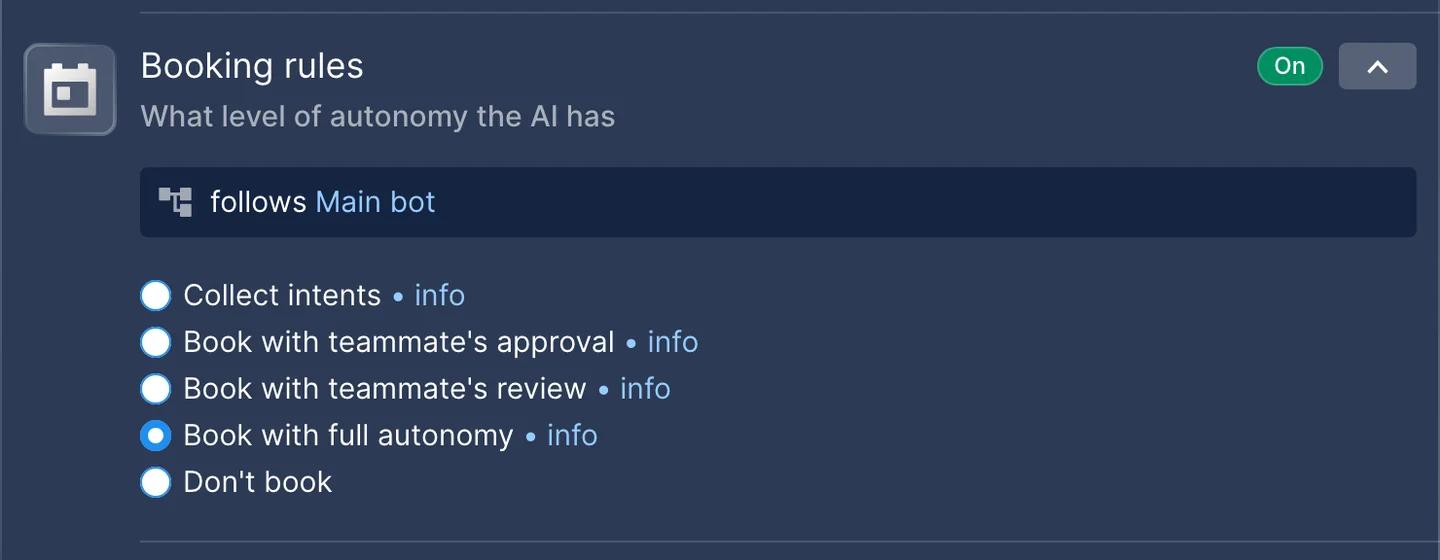
- Turn on booking. Open Automations › AI Agent and expand Booking rules. Choose how much the AI does on its own (the next section explains the options). Every channel follows this setting unless you change it in that channel's automation.
- Check the reminders. In Calendar › Settings › Reminders, keep Confirm booking and Remind about bookings on. Messages go out from the Chatfuel number by default, so you don't have to connect a WhatsApp number just for reminders (Calendar reminders).
- Test it. Ask for a booking in the automation's test chat, then check that it shows up in Calendar with the right specialist and time.
You can also ask the AI Co-pilot to do steps 1 to 3 in one message, for example: "Set up appointment booking: I have two stylists working Tuesday to Saturday." It adds the services, specialists, schedules and booking rules, then tells you what it set up (AI autobooking).
Choose how much the AI Agent decides
Booking rules has five options. You can set one for all channels and a different one for a single channel, so Instagram can work differently from WhatsApp (AI autonomy levels).
| Option | What the AI Agent does | Good for |
|---|---|---|
| Book with full autonomy | Collects the details, books, confirms, and also reschedules and cancels | High volume, a setup you trust |
| Book with teammate's review | Books on its own, then tells your team so someone can check | Starting out with AI booking |
| Book with teammate's approval | Collects the service, time and specialist, then a teammate creates the booking | High-value or complex services |
| Collect intents | Finds out what the client wants and hands the chat to your team | Teams that close every booking themselves |
| Don't book | Answers questions but doesn't book | Channels where you don't take bookings |
New bots start on Book with full autonomy. If you're not sure, start with Book with teammate's review: the AI does the work and your team still sees every booking. Anyone on your team can also step into a booking chat at any time, and new bookings can trigger web or mobile alerts (alerts about new chats and bookings).
Consultations booked from Instagram DMs
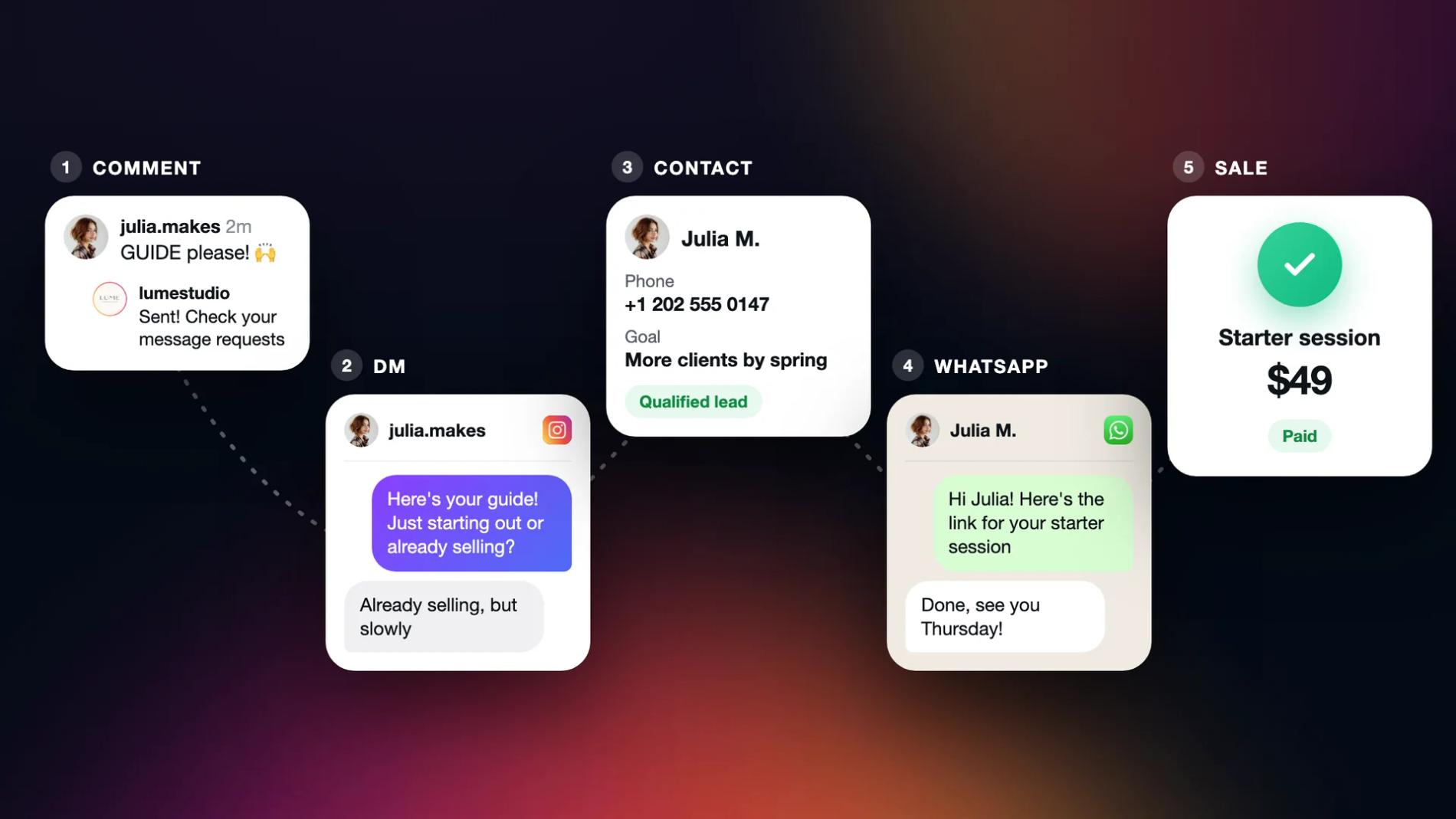
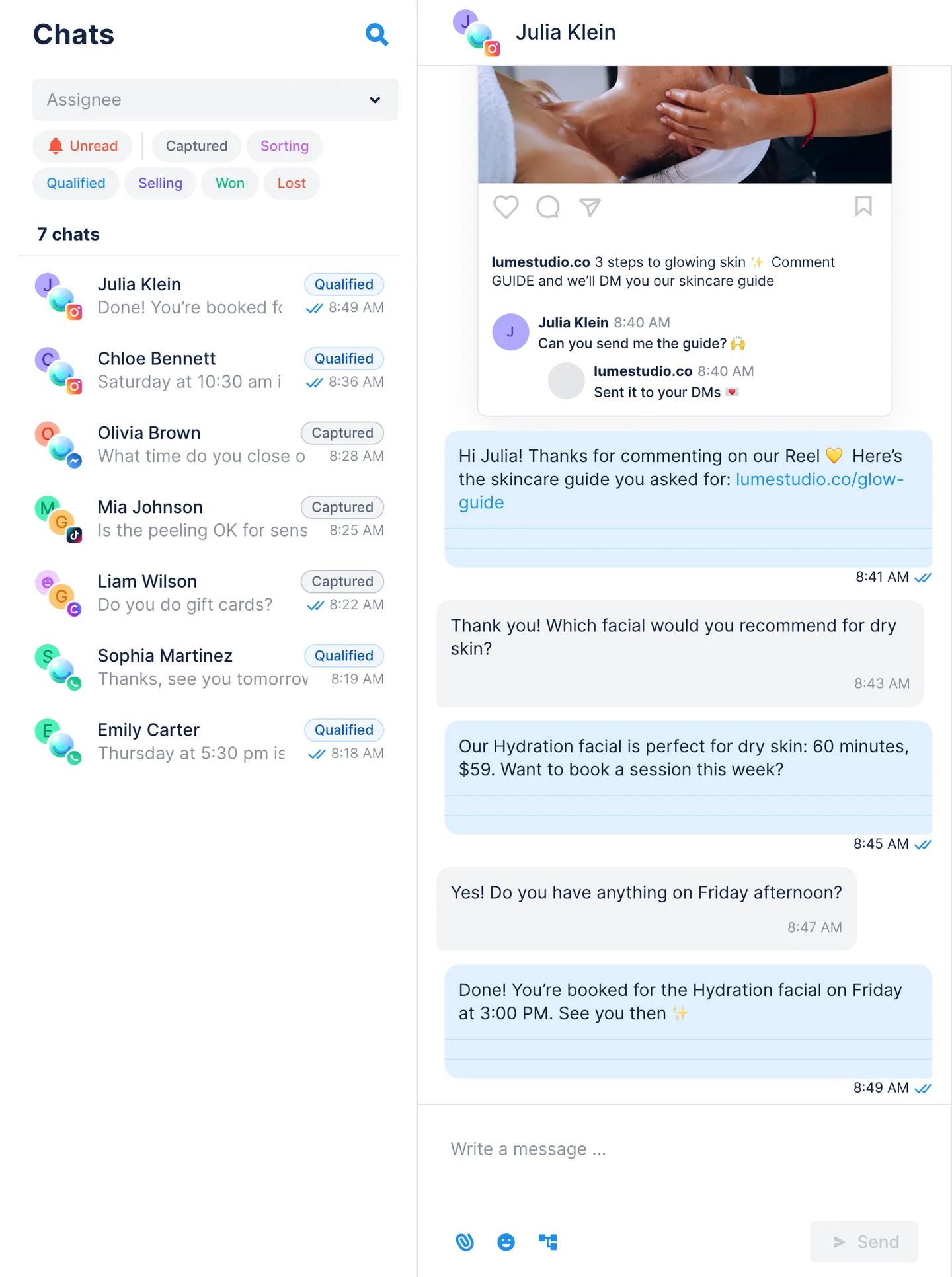
Many consultations start on Instagram: someone sees a post or a Reel, comments, or sends a DM asking for a time. The AI Agent books there the same way it does on WhatsApp. If you run comment-to-DM automation, the automation that sent the DM keeps answering the conversation for about a day, so a person who commented "price" can end up with a booked consultation in the same thread.
Two things to plan for on Instagram:
- Pick the level per channel. Open the Instagram Direct messages automation and change Booking rules there if you want a teammate to approve consultations that come from Instagram.
- Reminders go out on WhatsApp only. The AI Agent confirms the booking in the Instagram chat, but the day-before and two-hour reminders are WhatsApp messages (Calendar FAQ).
Reminders, the Calendar and Google Calendar
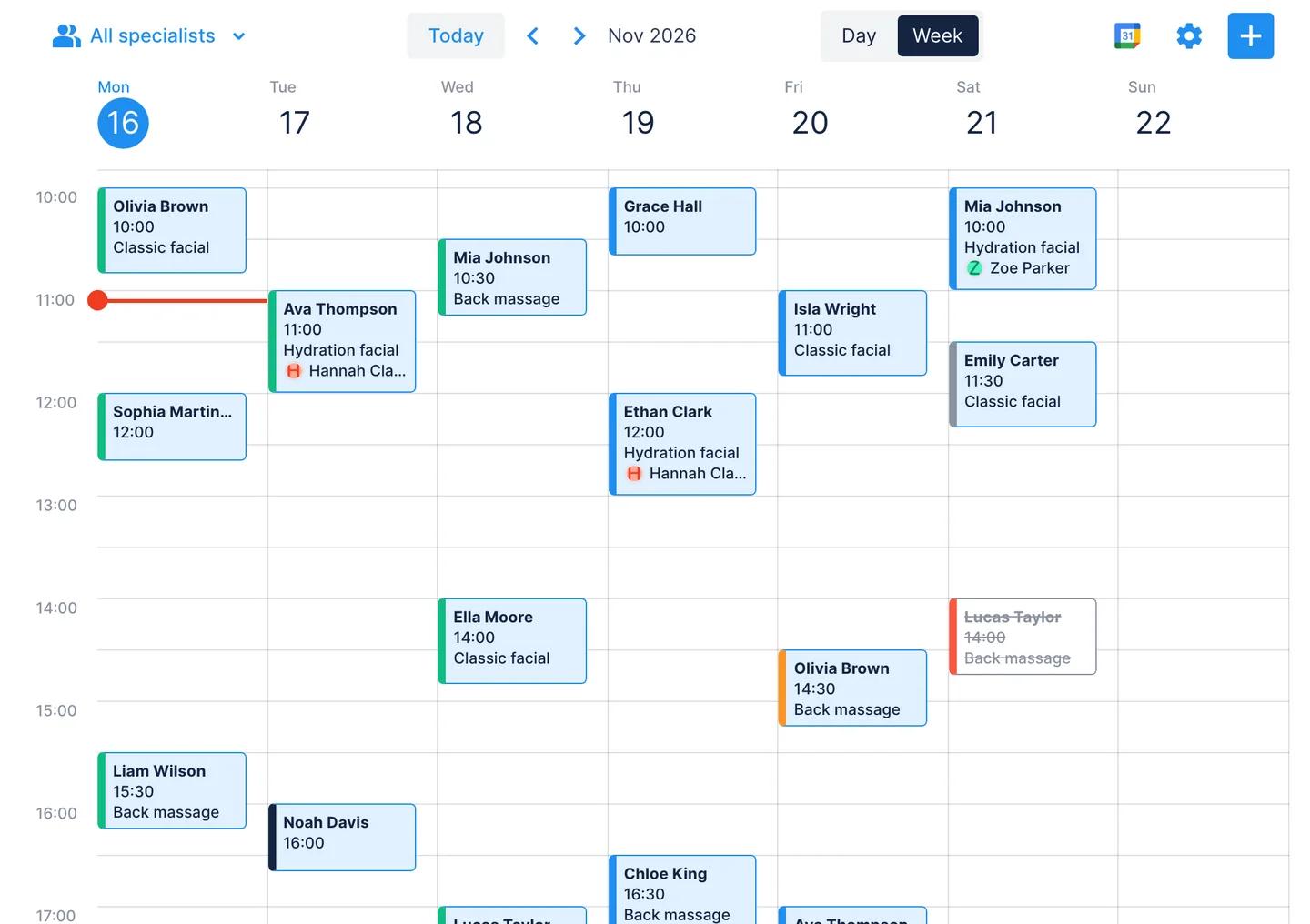
Every booking lands in Calendar, which shows the week or a single day for all specialists or for one. Your team can add a booking by hand with the + button, and each booking has a status: Not confirmed, Confirmed, Attended, No-show, Canceled or Needs rescheduling.
- Reminders. The client gets a confirmation right after booking, a reminder 24 hours before and another 2 hours before. The day-before reminder has Confirm, Cancel and Reschedule buttons, and the booking status changes when the client taps one. You can add your own text to each message, up to 512 characters, such as the address, parking or what to bring.
- Google Calendar. Each specialist can connect their Google Calendar, so their personal events block those slots and nobody is double-booked. The sync is one way: Google events show up in Chatfuel, but bookings made in Chatfuel don't appear in Google Calendar (connect Google Calendar).
- Deposits. Chatfuel doesn't take payments itself. If you ask for a deposit, add your payment link to the AI Agent's instructions and it sends the link in the chat (send a payment link).
If you also want the AI Agent to ask a few questions before it books, such as the client's goal or budget, see how to qualify leads on WhatsApp before the call.
Checklist
- Services with name, price and duration in Catalog
- Specialists with working hours and their services
- Open hours that cover every specialist's shifts
- Booking rules on, with the level you want for each channel
- Reminders on in Calendar › Settings › Reminders, with your address added
- Google Calendar connected for specialists who keep personal events there
- A test booking from the test chat, checked in Calendar
FAQs
How do I automate appointment booking on WhatsApp?
Connect your WhatsApp number to Chatfuel, add your services and specialists with their working hours, and turn on Booking rules in Automations › AI Agent. The AI Agent then answers booking requests, offers free slots and books them in your Calendar. Clients get a confirmation and reminders on WhatsApp.
How can clients book a consultation from Instagram DMs automatically?
Turn on Booking rules for your Instagram Direct messages automation, or for all channels at once. When someone asks for a consultation in a DM, or replies after a comment-to-DM message, the AI Agent offers free times and books one in the same Instagram thread.
Can an AI assistant book consultations into my calendar?
Yes. With Book with full autonomy or Book with teammate's review, the AI Agent creates the booking in Chatfuel's Calendar with the service, the specialist and the time. If you'd rather have a person confirm first, choose Book with teammate's approval.
Does the AI Agent check real availability before it books?
Yes. It offers only free slots inside the specialist's working hours. If the specialist has connected Google Calendar, their events there block those times too.
Can clients reschedule or cancel in the chat?
With Book with full autonomy, the AI Agent reschedules and cancels on its own. With Book with teammate's review, it reschedules and then tells your team. Clients can also tap Reschedule or Cancel in the WhatsApp reminder sent a day before.