


Connect Chatfuel MCP with HubSpot MCP
Leads your AI Agent qualifies in WhatsApp, Instagram and other chats go to HubSpot as contacts and deals. Closed deals and product prices come back to Chatfuel, all from one assistant chat.
What the integration can do
Tools the assistant calls on each side, named as the servers name them.
| Tool | What it does |
|---|---|
update_automation_setting | Changes one setting of an automation: when the AI replies, handoff to your team, follow-ups, lead qualification, booking rules or comment replies. |
list_chats | Lists customer chats with their channel, status and lead stage. |
get_chat | Returns the latest messages of one customer chat with its channel, status and lead stage. |
set_lead_stage | Moves a lead to another stage of the Leads board, such as Qualified or Won. |
add_faq | Adds question and answer pairs to the FAQ the AI Agent answers from. |
test_reply | Sends a sample customer message to a sandbox chat and returns the AI Agent's reply. |
send_chat_message | Sends the text you approved to a customer in their chat and moves the chat to live chat. |
| Tool | What it does |
|---|---|
search_crm_objects | Searches and filters HubSpot records such as contacts, deals and products, up to 200 per page. |
manage_crm_objects | Creates or updates HubSpot records and activities, such as a contact, a deal or a note, after you confirm. |
search_owners | Finds the HubSpot users who own records, by name or email. |
tool_guidance | Returns HubSpot's instructions for a tool, such as how to link records to each other. |
What to ask the assistant
Lead qualification → contacts and deals in HubSpot
WhenYou want every lead the AI Agent qualifies in chats to show up in your HubSpot pipeline.
- Chatfuel MCP turns on Lead Qualification with
update_automation_setting: the AI Agent asks each new lead for an email and the treatment they want. - Later,
list_chatsfinds the chats at the Qualified stage, andget_chatreads what each customer wrote. - HubSpot MCP looks for an existing contact with
search_crm_objectsand finds the deal owner withsearch_owners. Thenmanage_crm_objectscreates or updates the contact, adds a deal and a note from the chat and links them;tool_guidancegives it HubSpot's steps for linking records.
ResultLeads qualified in WhatsApp, Instagram and your other channels land in HubSpot with their email, the treatment they asked about and a summary of the chat.
AskHave the AI Agent ask new leads for an email and the treatment. Then add this week's qualified leads to HubSpot: a contact, a deal in Qualified to buy owned by Grace Kim and a note from the chat.
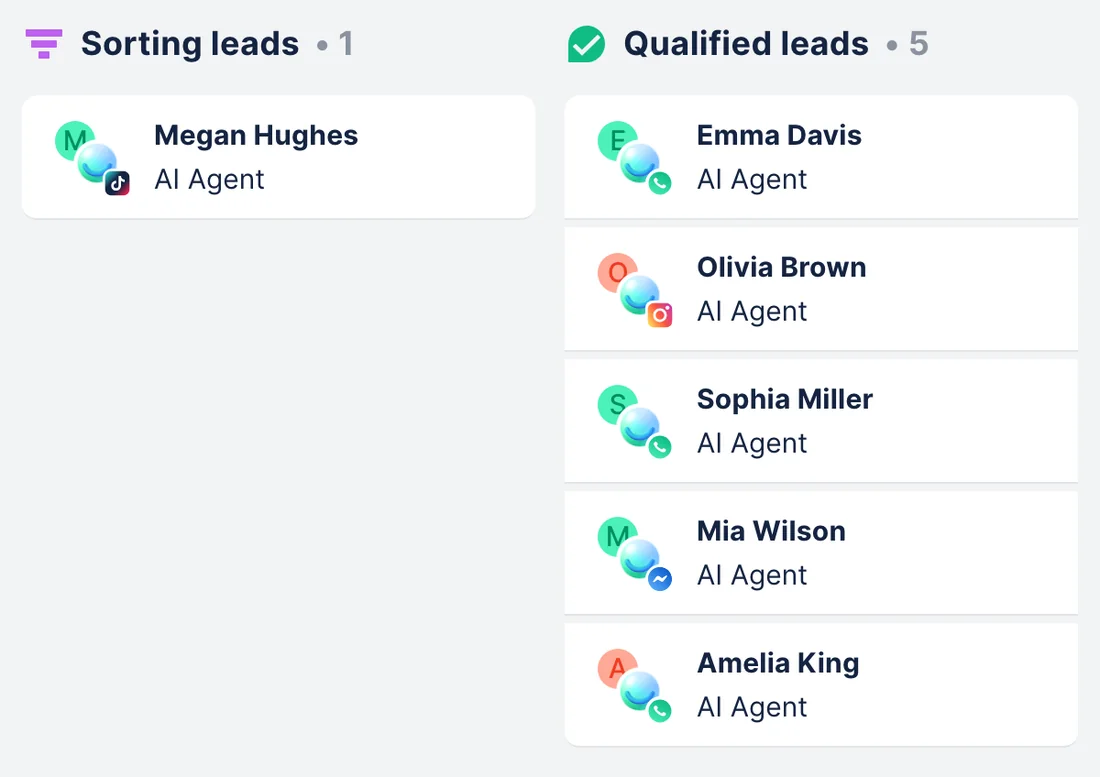
Closed won in HubSpot → Closed Won in Chatfuel
WhenYour team closes deals in HubSpot, and the Chatfuel Leads board still shows those customers in Selling.
- HubSpot MCP finds the deals that moved to Closed won this week with
search_crm_objectsand, followingtool_guidance, the contacts linked to them. - Chatfuel MCP finds each customer's chat with
list_chats, searching by phone or name. - After your yes,
set_lead_stagemoves each lead to Closed Won, and the chat goes back to the AI Agent.
ResultBoth boards agree on who bought, and customers who bought get answers from the AI Agent again instead of waiting in live chat.
AskFind the HubSpot deals we closed won this week and move those customers to Closed Won on the Chatfuel Leads board.
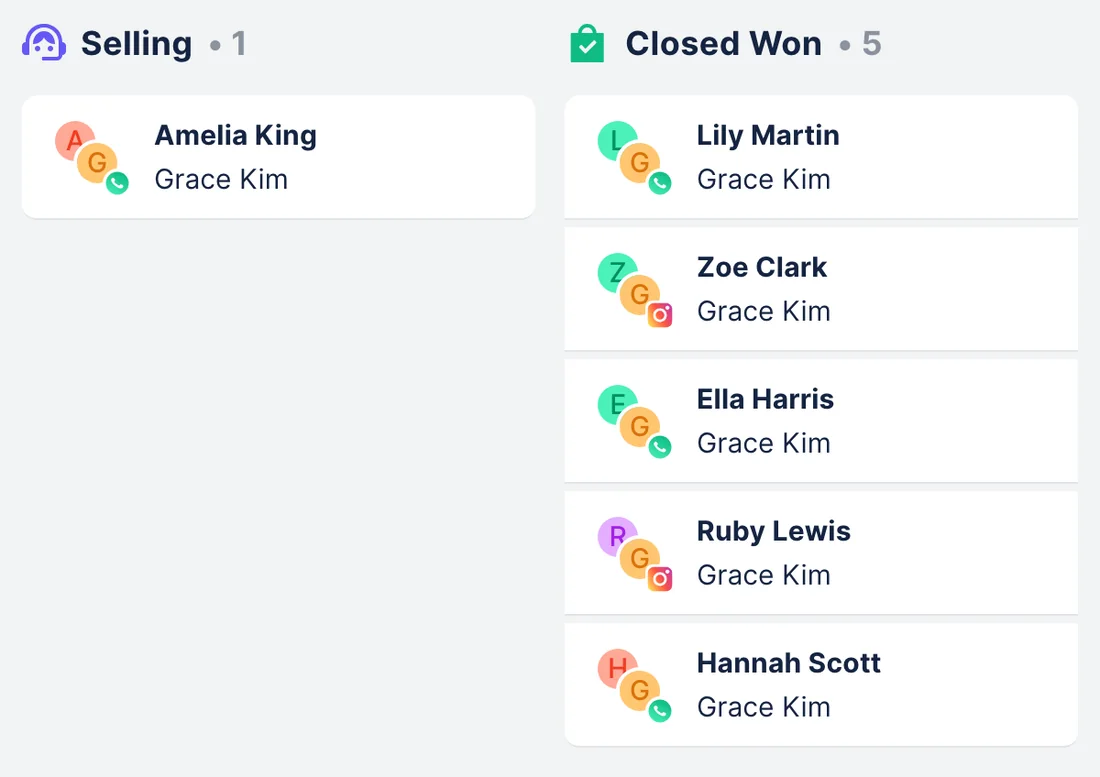
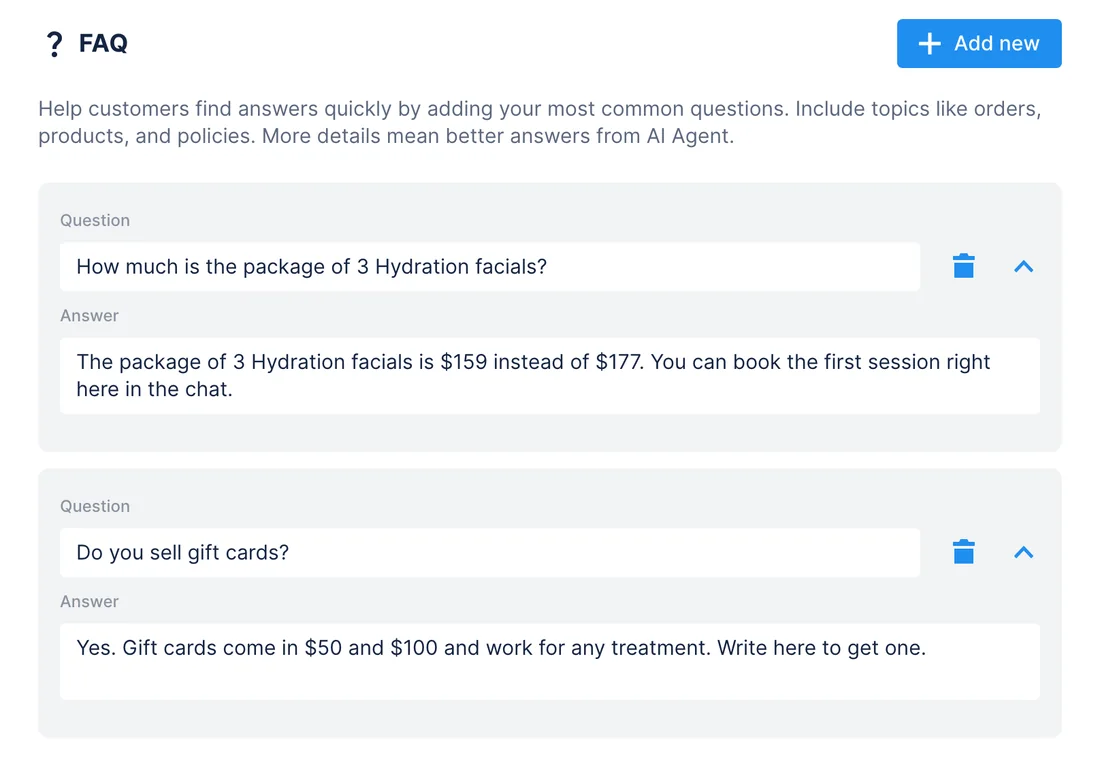
Product library → the AI Agent quotes your prices
WhenYou add a package or change a price in HubSpot's product library.
- HubSpot MCP reads the products with their names, prices and descriptions with
search_crm_objects. - Chatfuel MCP adds a question and answer for each new product with
add_faq. test_replyasks the AI Agent about the package in a sandbox chat, so you see the answer before customers do.
ResultThe AI Agent quotes the same packages and prices your sales team sees in HubSpot.
AskRead the products we added to HubSpot this month and add each one to our Chatfuel FAQ with its price. Then test how the AI Agent answers about the facial package.
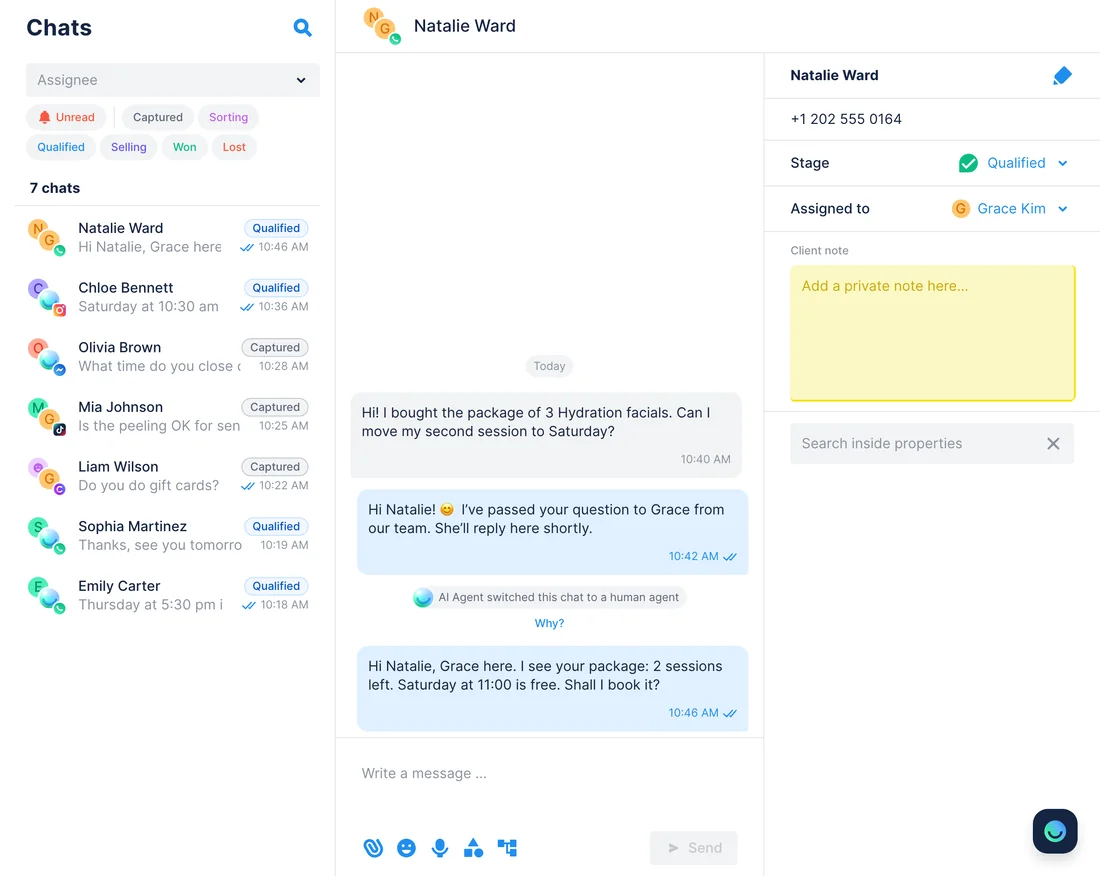
A customer with a deal writes → a reply that knows the deal
WhenA customer who bought a package writes in WhatsApp, and the AI Agent hands the chat to your team.
- Chatfuel MCP lists the chats waiting for a person with
list_chatsand reads the question withget_chat. - HubSpot MCP finds the customer's contact with
search_crm_objectsand, followingtool_guidance, the deal linked to it: what they bought, the amount and the stage. - The assistant drafts a reply, and
send_chat_messagesends it in the customer's chat after your yes.
ResultYour teammate answers in a minute with the customer's purchase in front of them, without searching HubSpot by hand.
AskWhich chats are waiting for a person? For each one, find the customer's deal in HubSpot and draft a reply I can send.
How to connect
Connect Chatfuel MCP
Add Chatfuel from Claude's or ChatGPT's directory, or by its URL in Cursor, and sign in with your Chatfuel account.
Connect HubSpot MCP
In Claude and ChatGPT, connect HubSpot from the directory and choose the permissions. In Cursor, add https://mcp.hubspot.com with an MCP connector you create in HubSpot.
Ask for both in one request
The assistant reads from one server and writes to the other. Chatfuel asks for a yes before it changes your bot or writes to a customer, and HubSpot asks you to confirm every create or update.
- Add Chatfuel from Claude's connector directory and sign in.
- Open Settings › Connectors › Browse, search for HubSpot and click Connect.
- Log in to HubSpot, choose the permissions and click Connect app. Set HubSpot's write tools to Needs approval.
- Chatfuel MCP
- claude.ai/directory/chatfuel
- HubSpot MCP
- From Claude's directory
- Install the Chatfuel plugin from ChatGPT's plugin directory and sign in.
- Open Settings › Apps, select HubSpot and click Connect, then Continue to HubSpot.
- Pick your HubSpot account, choose the permissions and click Connect app.
- Chatfuel MCP
- chatgpt.com/plugins
- HubSpot MCP
- From ChatGPT's directory
- Add Chatfuel to ~/.cursor/mcp.json with the URL https://mcp.chatfuel.com/panel.
- In HubSpot, open Development › MCP Connectors, click Create MCP connector and enter http://localhost:8787/callback, Cursor's redirect URL for its desktop app.
- Add HubSpot to mcp.json with "url": "https://mcp.hubspot.com" and the connector's client ID and secret under "auth", then sign in.
- Chatfuel MCP
https://mcp.chatfuel.com/panel- HubSpot MCP
https://mcp.hubspot.com
What you need
- A Chatfuel account with a bot and at least one connected channel: WhatsApp, Instagram, Facebook, TikTok or website chat.
- A HubSpot account on any plan. A Super Admin or a user with App Marketplace access connects HubSpot first; other users need a Super Admin's approval.
- Claude on a paid plan (Pro, Max, Team or Enterprise), ChatGPT, or Cursor with an MCP connector created in HubSpot.
- For the product library use case, products added in HubSpot.
Limits
- There's no automatic sync. The assistant moves leads and deals between the two when you ask, for example at the end of the day.
- Chatfuel MCP shares a customer's name, channel and messages, not their phone or email. HubSpot gets an email only if the customer typed it in the chat.
- HubSpot's connectors create or update up to 10 records at a time and don't delete records.
- With Sensitive Data turned on in HubSpot, the assistant can't read or log notes, calls, emails, meetings or tasks.
- Moving a lead to Closed Won or Closed Lost in Chatfuel hands its chat back to the AI Agent; the other stages open live chat with your team.
FAQ
Yes. HubSpot runs it at https://mcp.hubspot.com and made it generally available to all HubSpot accounts on April 13, 2026. It follows each user's HubSpot permissions.
No. Neither server runs in the background. Ask the assistant, for example "add today's qualified leads to HubSpot", and it reads the chats in Chatfuel and creates the records in HubSpot.
Before it creates a contact, it searches HubSpot with search_crm_objects by the email the customer typed in the chat, or by name if there is no email, and updates the contact it finds. HubSpot asks you to confirm every create or update, so check matches by name before you say yes.
The assistant adds a short note from the chat to the contact or deal. The full conversation stays in Chatfuel, where get_chat reads it.
HubSpot's connectors for Claude and ChatGPT work with all HubSpot plans. Some tools, such as quotes or AEO, need a Professional or Enterprise subscription; the use cases on this page use contacts, deals, notes and products.
HubSpot's directory connectors cover Claude and ChatGPT. For other clients, HubSpot documents an MCP connector you create under Development › MCP Connectors: register Cursor's desktop redirect URL, http://localhost:8787/callback, there and add the connector's client ID and secret to Cursor's mcp.json. HubSpot requires OAuth with PKCE for every connection.
More integrations


Connect Chatfuel MCP
Start a free trial, add Chatfuel to your assistant and ask about HubSpot and your chats in one place.