


Connect Chatfuel MCP with WordPress MCP
Your WordPress site already lists every treatment, its price and the posts your customers read. Ask Claude, ChatGPT or Cursor to carry those pages into the AI Agent's answers in WhatsApp, Instagram and web chat, and to turn what people ask in chats and blog comments into drafts, replies and comment DMs.
What the integration can do
Tools the assistant calls on each side, named as the servers name them.
| Tool | What it does |
|---|---|
get_knowledge_base | Returns what the AI Agent answers from: company info, instructions, business hours, FAQ, services and specialists. |
add_faq | Adds question and answer pairs to the FAQ the AI Agent answers from. |
update_faq | Changes or removes FAQ entries after you confirm. A removed entry can't be restored. |
set_company_info | Saves the company name, email, phone, address, website and how to pay that the AI Agent uses, after you confirm. |
test_reply | Sends a sample customer message to a sandbox chat and returns the AI Agent's reply. |
review_chats | Summarizes customer chats for a period instead of returning every message. |
list_posts | Lists recent posts and reels of the Instagram account and the Facebook Page connected to your bot. |
setup_comment_replies | Sets up AI or fixed replies to comments, for all of them or by keyword; on Instagram and Facebook also a DM and a choice of posts. |
| Tool | What it does |
|---|---|
wpcom-user-sites | Lists the WordPress.com sites and Jetpack-connected sites your account can reach, so the assistant picks the right one. |
wpcom-mcp-content-authoring | WordPress.com's content tool: it lists its operations, describes their parameters and runs one, such as posts.create, on the site you name. |
wpcom-mcp-site-editor-context | Reads the active theme's colors, font sizes, styles and blocks without changing anything, so new posts match your design. |
pages.list | Finds pages on the site by search term, parent page or status. |
pages.get | Returns one page with its content, by ID or slug. |
posts.list | Finds posts by status, search term, author or date, drafts included. |
posts.get | Returns one post by ID or slug, and looks among pages when the slug isn't a post's. |
posts.create | Creates a post, which WordPress.com saves as a draft unless told otherwise. |
posts.update | Changes only the fields it's given. Setting the status to publish makes the post live straight away. |
comments.list | Lists comments by status, post, author, search term or date, including those held for moderation. |
comments.update | Edits a comment or changes its status; an approved comment appears on the site at once. |
comments.create | Posts a comment as your WordPress.com user, such as a reply to a reader's question. |
What to ask the assistant
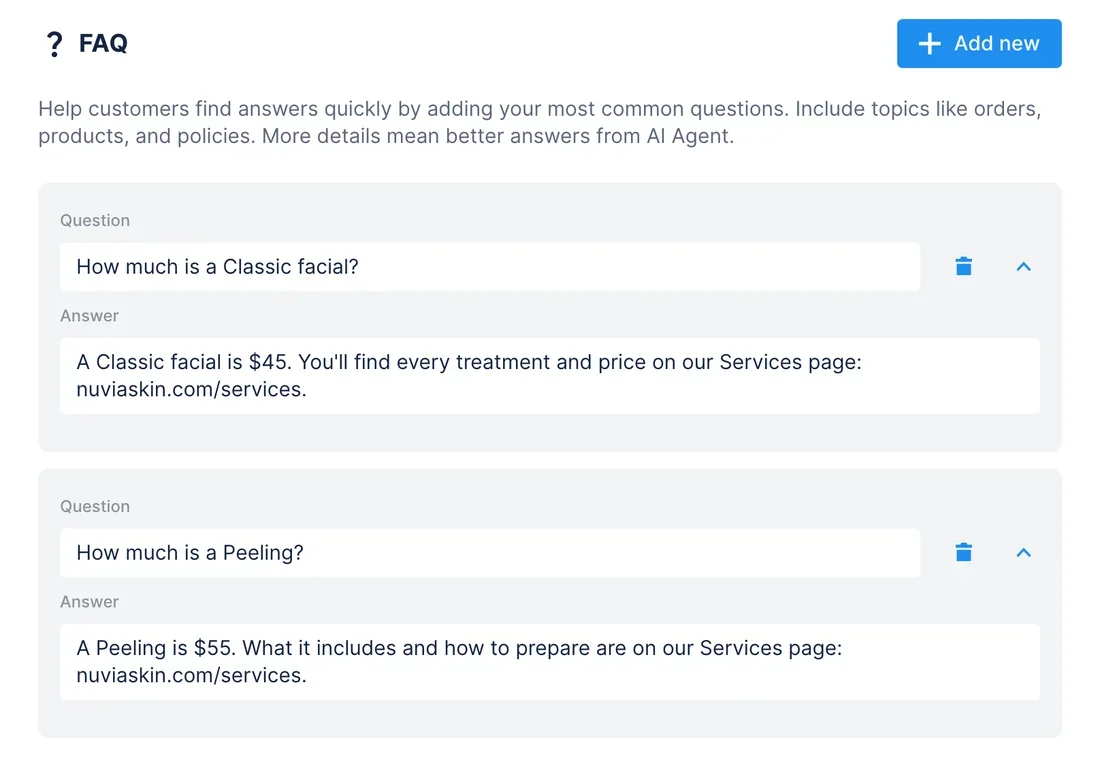
Services and Contact pages on your site → prices and contacts the AI Agent gives
WhenYou're turning on the AI Agent for WhatsApp and Instagram, and your WordPress site already lists every treatment with its price, plus the clinic's address and phone.
- WordPress.com MCP finds your site with
wpcom-user-sites. Throughwpcom-mcp-content-authoring,pages.listlocates the Services and Contact pages andpages.getreads them. - Chatfuel MCP compares the prices with
get_knowledge_base.add_faqadds an answer for each treatment with a link to the Services page, andupdate_faqfixes the Back massage answer that still says $35, after your yes. set_company_infosaves the address, phone and website from the Contact page once you confirm the before and after.test_replyasks the AI Agent in a sandbox chat what a Classic facial costs, and the reply should say $45, as the site does.
ResultCustomers get the same prices and address in a chat as on your website, and each answer points to the Services page for the details.
AskRead the Services and Contact pages on our WordPress site. Add each treatment and its price to Chatfuel's FAQ, fix answers with old prices, save our address and phone, then test what the AI Agent says to “how much is a Classic facial?”
Questions customers repeat in chats → a draft post on your blog
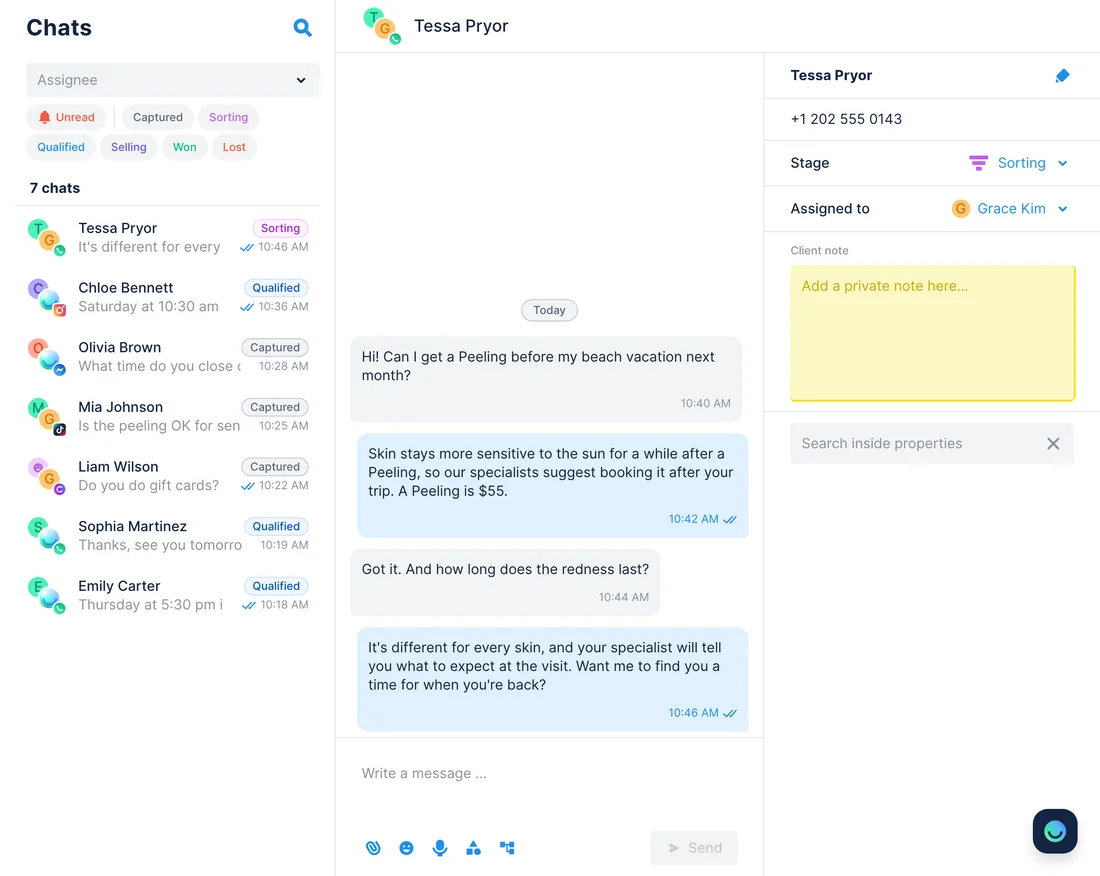
WhenEvery week someone asks in a chat whether a Peeling is fine before a beach trip or how long the redness lasts, and your blog has nothing on it.
- Chatfuel MCP looks back over two weeks with
review_chats, which returns the messages repeated across chats and the questions your FAQ doesn't cover.get_knowledge_basesupplies the price the AI Agent quotes, $55. - WordPress.com MCP reads your theme's presets with
wpcom-mcp-site-editor-context, thenposts.createsaves “Peeling in summer: what to know” as a draft built around those questions. - You edit and publish the post in WordPress. Ask again afterwards:
posts.getreturns its address, andadd_faqadds a short answer that links to it.
ResultYour blog answers what customers actually ask, and the AI Agent can send the article to the next person with the same question.
AskReview the last two weeks of Chatfuel chats and find what customers ask about Peeling most. Write a blog post on our WordPress site that answers those questions and save it as a draft for me.
New post on your blog → its link in a DM to everyone who comments on the reel
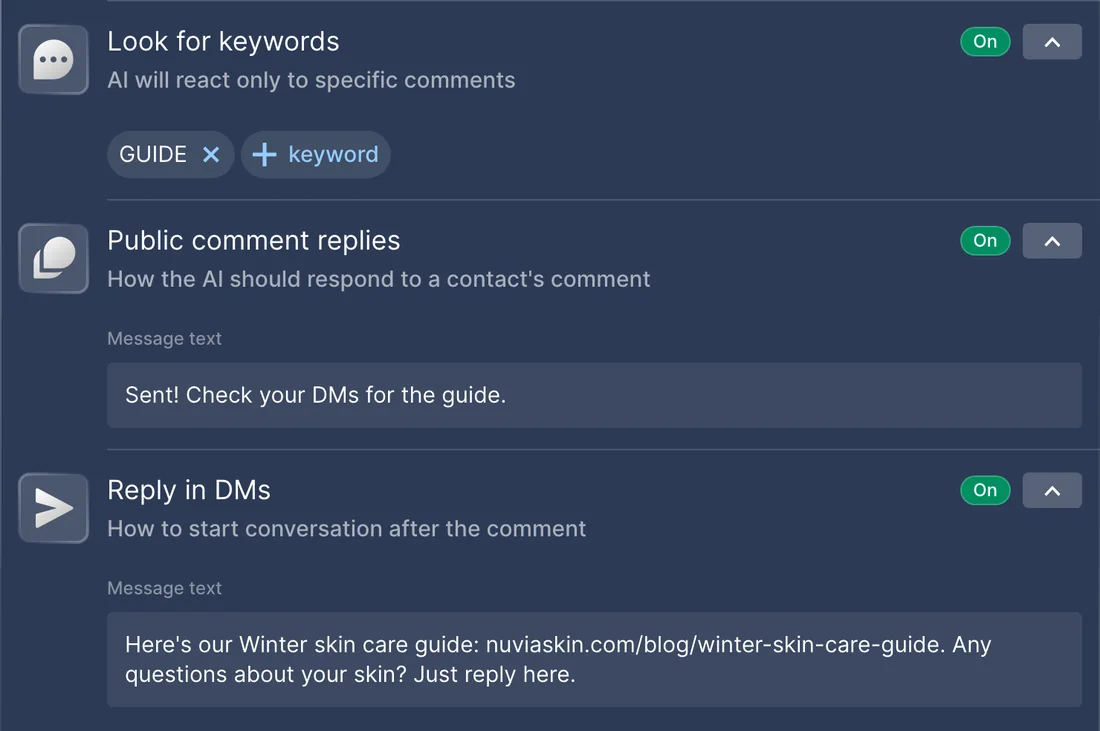
WhenYour Winter skin care guide waits in WordPress drafts, and today's Instagram reel tells viewers to comment GUIDE to get it.
- WordPress.com MCP finds the draft with
posts.list, andposts.updatesets it to publish after your yes. A published post is public right away, so read it through first. posts.getreturns the guide's address on your site.- Chatfuel MCP finds the reel with
list_posts, andsetup_comment_repliesanswers comments with “guide” and a few spellings: a short public line and a DM with the article link.
ResultEach viewer who comments the keyword gets the guide in their DMs, and the reel sends readers straight to your blog.
AskPublish our draft “Winter skin care guide” on WordPress. Then set up Chatfuel replies on today's Instagram reel: anyone who comments “guide” gets a short public reply and the article link in a DM.
Questions in blog comments → FAQ answers and replies under the post
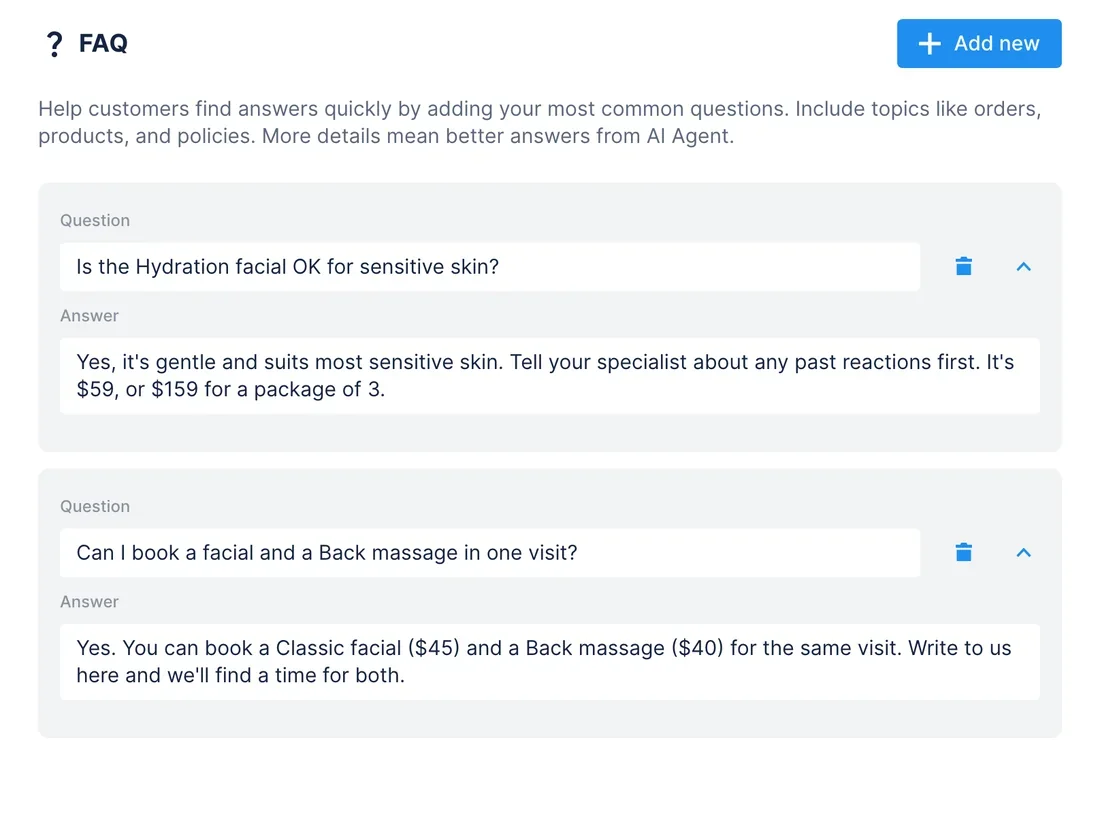
WhenReaders ask under your posts whether the Hydration facial suits sensitive skin or if a facial and a massage fit in one visit, and some of those comments sit in moderation.
- WordPress.com MCP pulls this month's comments with
comments.list, the ones held for moderation too, and the assistant picks out the questions. - Chatfuel MCP checks them against
get_knowledge_base, andadd_faqadds the ones the AI Agent can't answer yet, worded the way your team answers. comments.updateapproves the held questions, andcomments.createposts a reply under each one with the same answer, after you approve the drafts.
ResultReaders find an answer under the post, and the AI Agent gives the same one when the question comes up in WhatsApp or Instagram.
AskFind the questions in this month's comments on our WordPress blog, pending ones included. Add the ones Chatfuel's FAQ can't answer yet, then approve those comments and draft a reply to each for me to check.
How to connect
Switch on MCP in WordPress.com
Under Preferences › AI and MCP in your WordPress.com account, turn on Enable MCP access, or let the first sign-in do it. For a Jetpack site, the switch is in WP Admin › Jetpack › Jetpack AI.
Add Chatfuel and WordPress.com
Both are listed in Claude's directory and among ChatGPT's plugins. In Cursor, Chatfuel goes into mcp.json by URL and WordPress.com comes from /add-plugin wordpress-com.
Choose the access, then ask
WordPress.com's sign-in offers Full access or Read only; drafting, publishing and comment replies need Full access. Name the site and the page in your request, and Chatfuel waits for your yes before it changes the bot.
- Open Claude's connector directory, add Chatfuel and log in to your Chatfuel account.
- Open the WordPress.com connector, made by Automattic, and click Connect. It works in claude.ai and in Claude Desktop.
- On WordPress.com's authorization page, pick Full access or Read only and click Allow, or Allow & turn on agent access if MCP is still off.
- Chatfuel MCP
- claude.ai/directory/chatfuel
- WordPress.com MCP
- From Claude's directory
- Install the Chatfuel plugin from ChatGPT's directory and log in.
- Open chatgpt.com/plugins/wordpress-com and click Install plugin; WordPress.com's authorization page opens.
- Choose the access level, click Allow, and type @WordPress.com in a chat when you want the plugin.
- Chatfuel MCP
- chatgpt.com/plugins
- WordPress.com MCP
- From ChatGPT's directory
- In ~/.cursor/mcp.json, add a chatfuel server with https://mcp.chatfuel.com/panel and log in when asked.
- Type /add-plugin wordpress-com in Cursor's chat, or click Add to Cursor on the WordPress plugin page by WordPress.com.
- The first WordPress.com call opens its authorization page in your browser. Adding https://public-api.wordpress.com/wpcom/v2/mcp/v1 to mcp.json instead works the same way.
- Chatfuel MCP
https://mcp.chatfuel.com/panel- WordPress.com MCP
/add-plugin wordpress-com
What you need
- A Chatfuel bot with WhatsApp, Instagram, Facebook, TikTok or website chat connected. The comment DM use case needs Instagram or a Facebook Page.
- A site on a paid WordPress.com plan, or a self-hosted site connected to Jetpack with a Jetpack AI or Jetpack Complete plan. Free sites and Jetpack sites without those plans can use MCP until November 30, 2026.
- MCP access turned on for your WordPress.com account, with the Write tools for posts and comments on. Read only access is enough to import the Services page.
- A role on the site that allows the work: Editors can write, publish and moderate comments; Contributors only save drafts.
- Claude, ChatGPT or Cursor. WordPress.com signs you in through the browser with OAuth, so there's nothing to install.
Limits
- WordPress.com's access choice applies to your whole account: picking Read only for one assistant switches off the Write tools for every assistant you've connected. A site admin can also turn tools off for one site, and then the assistant's connection needs a restart.
- Whether the assistant asks before each change depends on your WordPress.com approval settings; permanent deletions always ask. Publishing a post or approving a comment shows it to visitors immediately.
- The AI Agent doesn't browse your website during a chat. It answers from Chatfuel's knowledge base, so a price you edit on the site reaches chats only after you ask the assistant to read the page again.
- Prices go into the FAQ. Chatfuel's product catalog and booking services can be edited only in the dashboard, not through Chatfuel MCP.
- A blog comment and a Chatfuel chat aren't linked in any way, so the assistant answers readers on the blog and customers in their chats, each separately.
- A keyword reply on one reel leaves the account's other comments without a Chatfuel reply unless you ask to keep both. On TikTok the commenter gets a public reply only, with no DM.
- A self-hosted site without Jetpack can't use WordPress.com's server. The WordPress MCP Adapter plugin works there, but WordPress itself offers only site, user and environment info through it, so posts and comments need a plugin that adds abilities for them.
FAQ
Yes. WordPress.com, made by Automattic, runs one at https://public-api.wordpress.com/wpcom/v2/mcp/v1 with OAuth 2.1, listed in Claude's directory and as plugins for ChatGPT and Cursor. It isn't in the MCP Registry, and its docs give no beta or GA label. Self-hosted sites also have the WordPress project's MCP Adapter plugin.
Yes, if the site is connected to Jetpack: it reaches the same server and tools as a WordPress.com site, through the WordPress.com account it's linked to. After November 30, 2026, that needs a Jetpack AI or Jetpack Complete plan.
posts.create always starts with a draft. Publishing, approving comments and replying go live when they run, and WordPress.com asks you first unless you changed its approval settings. Chatfuel asks for a yes before it changes the FAQ, company info or comment replies.
The lowest one that covers the job. Editors can manage posts, pages and comments, which is everything on this page, but not settings or plugins. Contributors can only draft. MCP follows your role on each site.
No. WordPress.com's tools reference has no operation for form responses, and it can't reach WordPress or Jetpack internal content types. Chatfuel MCP has no contact import either, so form leads stay in WordPress.
In WordPress.com, open Security › Connected applications and click Disconnect next to the assistant; it may show as MCP Client, sometimes more than once. To stop every agent at once, switch off Enable MCP access under Preferences › AI and MCP.
More integrations


Connect Chatfuel MCP
Start a free trial, add Chatfuel to your assistant and ask about WordPress and your chats in one place.