


Connect Chatfuel MCP with Webflow MCP
Your Webflow site holds the FAQ, the blog and the contact form, and visitors keep writing to you through it. Ask your assistant to turn what the site says and what visitors send into the AI Agent's answers, put the Chatfuel web chat on every page and bring chat questions back to the site's FAQ as drafts.
What the integration can do
Tools the assistant calls on each side, named as the servers name them.
| Tool | What it does |
|---|---|
get_knowledge_base | Returns what the AI Agent answers from: company info, instructions, business hours, FAQ, services and specialists. |
add_faq | Adds question and answer pairs to the FAQ the AI Agent answers from. |
test_reply | Sends a sample customer message to a sandbox chat and returns the AI Agent's reply. |
review_chats | Summarizes customer chats for a period instead of returning every message. |
get_chat | Returns the latest messages of one customer chat with its channel, status and lead stage. |
list_posts | Lists recent posts and reels of the Instagram account and the Facebook Page connected to your bot. |
setup_comment_replies | Sets up AI or fixed replies to comments, for all of them or by keyword; on Instagram and Facebook also a DM and a choice of posts. |
enable_ai | Turns on the AI Agent for the channels you pick, including chats that start from ads. |
| Tool | What it does |
|---|---|
data_sites_tool | Lists the Webflow sites your sign-in covers, returns a site's domains and publishing status, and publishes its latest changes. |
data_forms_tool | Lists a site's forms with their fields and reads what visitors submitted, per form or across the site. |
data_cms_tool | Reads CMS collections and their items, with filters on your own fields, and creates, updates, publishes or unpublishes items; new ones start as drafts. |
data_scripts_tool | Reads and writes the custom code in a site's or page's head and footer, and registers and applies scripts. |
What to ask the assistant
Contact form questions on your Webflow site → answers in the FAQ
WhenEvery week visitors type the same questions into the contact form on your Webflow site and wait for an email, even though most answers already sit in the site's FAQ collection.
- Webflow MCP finds the Nuvia Skin site with
data_sites_tool, anddata_forms_toollists its forms and reads the last month of Contact form submissions, each with its date and fields. - The assistant boils the messages down to the questions that keep coming back. Names, emails and phones stay out of what it writes.
data_cms_toolreads the FAQ collection for answers your team already published on the site. Where the site has none, the assistant drafts one for you to approve or edit.- Chatfuel MCP compares the list with
get_knowledge_base,add_faqadds the missing pairs and skips the questions it already has, andtest_replyasks one of them in a sandbox chat.
ResultA question that used to arrive by form and wait for an email reply now gets an answer from the AI Agent as soon as someone asks it in web chat, WhatsApp or Instagram.
AskRead last month's Contact form submissions on our Webflow site and our FAQ collection. Add the questions people ask most to the Chatfuel FAQ, using the site's answers, then test one.
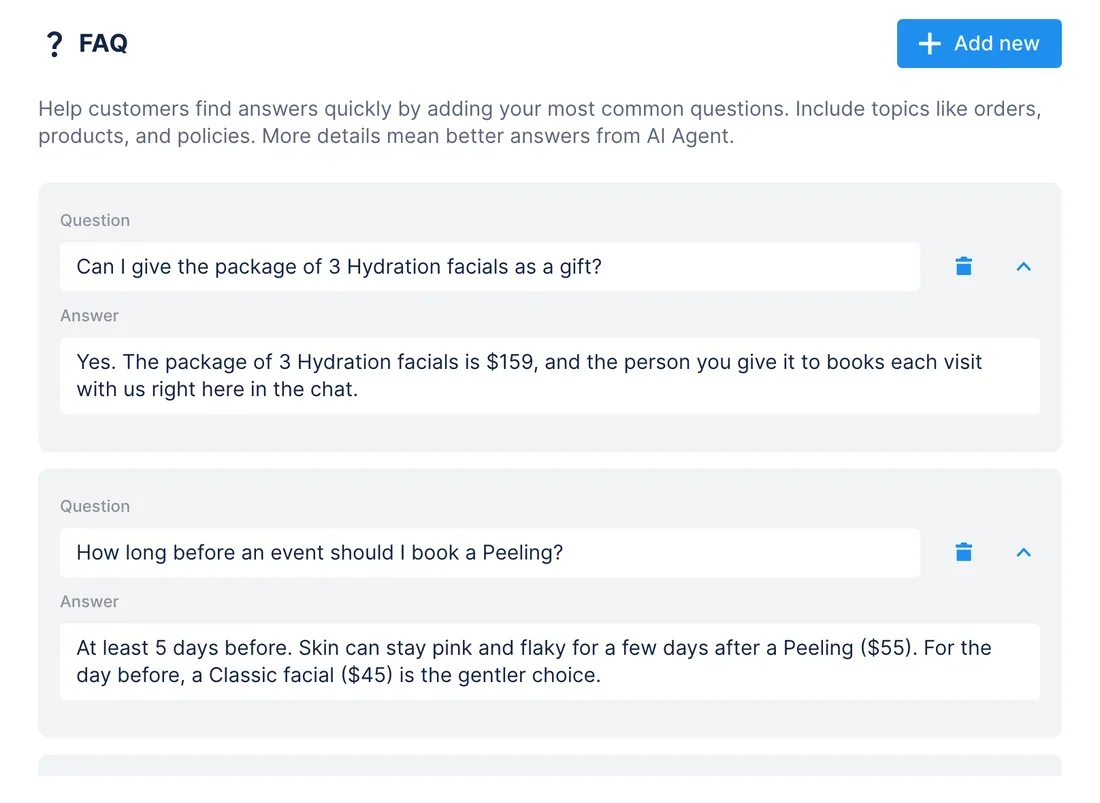
Questions the AI Agent handed to your team → FAQ items on the Webflow site
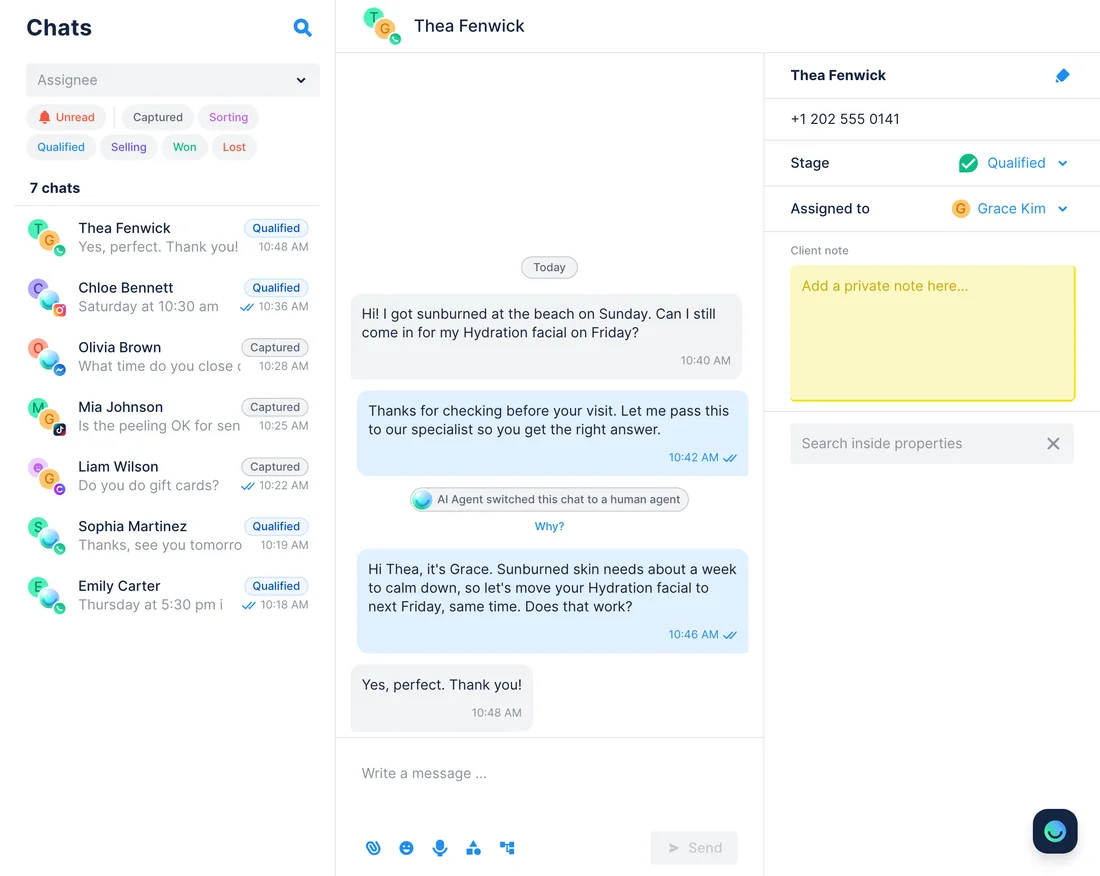
WhenSome customers ask what the FAQ doesn't cover, such as whether a sunburn rules out a facial, and the AI Agent passes those chats to Grace Kim.
- Chatfuel MCP's
review_chatssums up last week: chats handed to a person, repeated questions and the ones the FAQ doesn't answer.get_chatshows how Grace replied in each. - Webflow MCP opens the site's FAQ collection with
data_cms_tool: get_collection_details returns its fields and list_collection_items its questions, so nothing already on the site is added twice. - create_collection_items saves each new question with Grace's answer as a draft, so it stays off the live site until someone checks it in Webflow.
- Once the drafts are approved, ask again: publish_collection_items puts them live after your yes, and
add_faqgives the AI Agent the same wording.
ResultThe next customer who asks about a sunburn finds the answer on the site's FAQ page, and the AI Agent gives it in the chat without passing the question on.
AskFind the questions in last week's Chatfuel chats that our FAQ didn't cover and Grace answered. Add each one with her answer to the FAQ collection on our Webflow site as a draft.
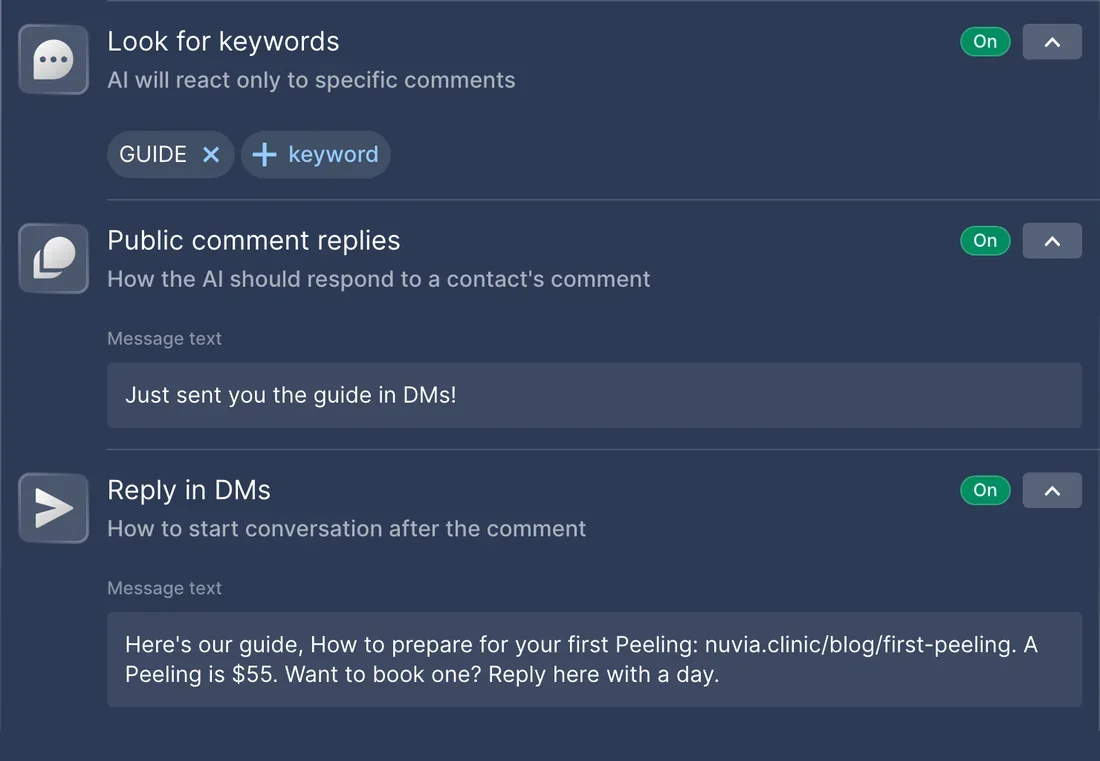
Blog post in the Webflow CMS → the article in DMs for every GUIDE comment
WhenGrace Kim wrote “How to prepare for your first Peeling” in your site's Blog collection, and a reel about it goes out on Instagram today.
- Webflow MCP finds the post in the Blog collection with
data_cms_tool. If it's still a draft, publish_collection_items makes it live after your yes. data_sites_toolreturns the site's domains, and the assistant builds the article's address from the domain, the collection slug and the post slug.- Chatfuel MCP finds today's reel by its caption with
list_posts. setup_comment_repliesanswers comments with GUIDE and a few spellings, under that reel only: a short public reply and a DM with the article link and the Peeling price. You confirm first, since Chatfuel then stops replying to other Instagram comments.
ResultEveryone who comments GUIDE gets the article in their DMs, and if they write back to book, the AI Agent picks up the conversation there.
AskIf our blog post How to prepare for your first Peeling is still a draft on Webflow, publish it. Then set up Chatfuel replies to GUIDE comments under today's reel: a short public reply and a DM with the article link.
Chatfuel widget code → your Webflow site's footer → the AI Agent answering visitors
WhenYou want visitors on your Webflow site to chat with the AI Agent, and nobody on the team wants to edit site code.
- In Chatfuel's Settings › Website, add your site's domains, copy the installation code and switch the widget on. This part stays in the dashboard; paste the code into your request.
- Webflow MCP reads the site's head and footer code with
data_scripts_tool. Because set_site_freeform_code replaces the whole footer block, it writes back the code already there plus the snippet, after your yes. data_sites_toolpublishes the site. Any other edits waiting to go live are published with the snippet, which is why the assistant asks first.- Chatfuel MCP's
enable_aiturns on the AI for web chat after your yes, andtest_replysends a visitor's question to a sandbox chat.
ResultThe chat widget shows on every page of the site, and visitors get answers from the same knowledge base the AI Agent uses in WhatsApp and Instagram.
AskHere's our Chatfuel widget code. Add it to the footer code of our Webflow site without removing what's there, publish the site and turn on the AI for web chat.
How to connect
Connect Chatfuel MCP
Add Chatfuel from Claude's or ChatGPT's directory, or give Cursor https://mcp.chatfuel.com/panel, and sign in to the Chatfuel account that holds your bot.
Connect Webflow MCP
Add Webflow from Claude's connectors or ChatGPT's apps, or put https://mcp.webflow.com/mcp in Cursor. On Webflow's screen, tick the sites or the workspace the assistant may use and click Authorize App.
Name the site and collection
Say which site, form or CMS collection to use. Webflow keeps to your role and saves new CMS items as drafts, and Chatfuel waits for your yes before it changes the AI Agent or its replies.
- Open Customize › Connectors in Claude, find Chatfuel in the directory and sign in.
- Search the directory for Webflow, the connector made by Webflow; if it doesn't show, switch the list from Featured to All. Click Connect.
- Log in to Webflow, select the sites or workspace for Claude and click Authorize App. For another workspace, remove the connector and add it again.
- Chatfuel MCP
- claude.ai/directory/chatfuel
- Webflow MCP
- From Claude's directory
- Find Chatfuel in ChatGPT's directory and connect your Chatfuel account.
- Open the Webflow app in ChatGPT, click Connect, then Sign in with Webflow, and approve access with Continue.
- Choose the sites or workspace, click Authorize App and mention @Webflow in your request. ChatGPT asks you to approve each Webflow action by default.
- Chatfuel MCP
- chatgpt.com/plugins
- Webflow MCP
- From ChatGPT's directory
- Add a "chatfuel" server with the URL https://mcp.chatfuel.com/panel to your mcp.json.
- Add "webflow": {"url": "https://mcp.webflow.com/mcp"} to the same file, or install Webflow's plugin with /add-plugin webflow. Webflow's guide suggests a project-level .cursor/mcp.json to avoid repeated sign-ins.
- In Customize › MCPs, click Authenticate next to Webflow, authorize your sites and wait for the green indicator.
- Chatfuel MCP
https://mcp.chatfuel.com/panel- Webflow MCP
https://mcp.webflow.com/mcp
What you need
- A Chatfuel bot. The guide use case needs Instagram or Facebook connected and the AI Agent answering DMs there; the web chat use case starts in Chatfuel's Settings › Website.
- Owner or admin rights on the Webflow site: Webflow shows sites you can't authorize greyed out on its sign-in screen.
- A site plan that covers each use case: the CMS holds 50 items on the free Starter plan and isn't included in Basic, custom code needs a paid site plan, and Starter collects 50 form submissions per site.
- A CMS collection for questions and answers, and a Blog collection, on the site. The Webflow Designer can stay closed: every tool on this page runs without it.
- Claude, ChatGPT or Cursor.
Limits
- Neither server watches the other. A new form submission or CMS item reaches the AI Agent, and a chat question reaches the site, only when you ask the assistant.
- One Webflow authorization covers one workspace. To work in another, remove the Webflow connector or app, add it again and pick that workspace.
- CMS items the assistant creates stay drafts until publish_collection_items runs. publish_site sends every unpublished edit on the site live, not only the widget code, and Webflow allows one site publish a minute.
- Copying the widget code and switching the widget on happen in Chatfuel's dashboard. set_site_freeform_code overwrites the footer block, so the assistant has to write back what was there.
- Webflow's Data API, which the server is built on, takes 60 requests a minute on Starter and Basic sites and 120 on CMS, eCommerce and Business; a long run can pause at that limit.
- Replies limited to the guide's reel switch off Chatfuel's reply to every other Instagram comment; the assistant asks before it does that.
FAQ
Yes. Webflow hosts it at https://mcp.webflow.com/mcp and publishes it in the MCP Registry as com.webflow/mcp. Its docs call it the production server; experimental tools go to a separate Beta server at https://mcp.webflow.com/beta/mcp, which this page doesn't use.
No. Forms, CMS items, custom code and publishing go through Webflow's Data API. Only element snapshots, image uploads by URL and reading or changing what's open on the canvas, such as the selection or breakpoints, need the Designer open with the MCP Bridge App, which installs itself when you authorize.
Webflow lists the MCP server on every site plan, Starter included. The limits come from the site plan: Starter holds 50 CMS items and 50 form submissions, Basic has no CMS, and the chat widget needs custom code, which Starter doesn't offer.
Yes, once you copy the installation code from Chatfuel's Settings › Website. Webflow MCP adds it to the site's footer code and publishes the site after your yes, and Chatfuel MCP turns on the AI for web chat.
No. Ask the assistant to read the form again, for example monthly. add_faq skips questions the FAQ already has word for word, and the assistant compares the rest with the current FAQ so reworded repeats don't pile up.
A site owner or admin. After that, the assistant does only what that person's Webflow role allows, and each sign-in reaches one workspace, so a second workspace needs a new connection.
More integrations


Connect Chatfuel MCP
Start a free trial, add Chatfuel to your assistant and ask about Webflow and your chats in one place.