


Connect Chatfuel MCP with Pipedrive MCP
Your AI Agent talks to customers on WhatsApp, Instagram and Messenger, and your sales team works in Pipedrive. Ask your assistant to carry qualified chats into the Leads Inbox and bookings into activities, and to bring Pipedrive prices back into the AI Agent's answers.
What the integration can do
Tools the assistant calls on each side, named as the servers name them.
| Tool | What it does |
|---|---|
list_chats | Lists customer chats with their channel, status and lead stage. |
get_chat | Returns the latest messages of one customer chat with its channel, status and lead stage. |
list_bookings | Lists appointments between two dates: time, service, specialist, customer name and status. |
get_knowledge_base | Returns what the AI Agent answers from: company info, instructions, business hours, FAQ, services and specialists. |
add_faq | Adds question and answer pairs to the FAQ the AI Agent answers from. |
update_faq | Changes or removes FAQ entries after you confirm. A removed entry can't be restored. |
test_reply | Sends a sample customer message to a sandbox chat and returns the AI Agent's reply. |
send_chat_message | Sends the text you approved to a customer in their chat and moves the chat to live chat. |
| Tool | What it does |
|---|---|
getAccountContext | Returns your Pipedrive setup: pipelines and their stages, custom fields and the users in your company. |
searchPersons | Finds Pipedrive contacts by name, email or other details. |
addPerson | Creates a contact in Pipedrive. |
addLead | Creates a lead in Pipedrive's Leads Inbox. |
addNote | Adds a note to a deal, lead, contact or organization. |
getActivities | Lists activities such as calls and meetings, for example everything scheduled this week. |
addActivity | Schedules a new activity, such as a call or a meeting. |
updateActivity | Edits an activity: reschedules it or marks it as done. |
getDeals | Lists deals, for example the open deals in your pipeline. |
getProducts | Lists the products in your Pipedrive catalog. |
What to ask the assistant
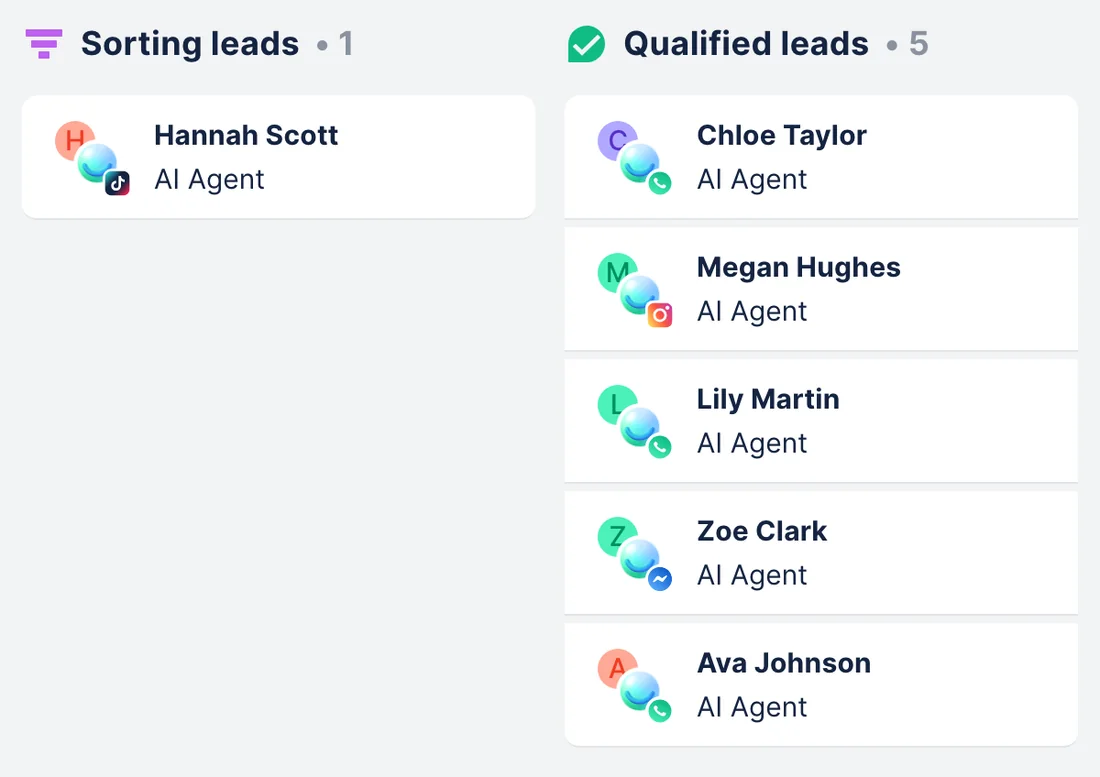
Qualified chat → a lead in Pipedrive's Leads Inbox
WhenCustomers the AI Agent qualified this week exist only in Chatfuel, while your sales team works from Pipedrive.
- Chatfuel MCP lists the chats at the Qualified stage with
list_chats, andget_chatreads each one: the treatment, when the customer wants it and any email or phone they typed. - Pipedrive MCP checks for an existing contact with
searchPersonsand creates one withaddPersononly when nothing matches. getAccountContextfinds Grace Kim among your Pipedrive users, andaddLeadputs the lead in the Leads Inbox with her as the owner.addNotepins a short summary of the chat to the lead, so whoever calls knows what the customer asked.
ResultYour sales team opens the Leads Inbox and finds every customer qualified in the chat with a contact, an owner and the story so far, with nothing retyped.
AskTake this week's qualified chats from Chatfuel and add each customer to Pipedrive's Leads Inbox: check for an existing contact first, make Grace Kim the owner and add a note that sums up the chat.
Chatfuel bookings → activities on the Pipedrive calendar
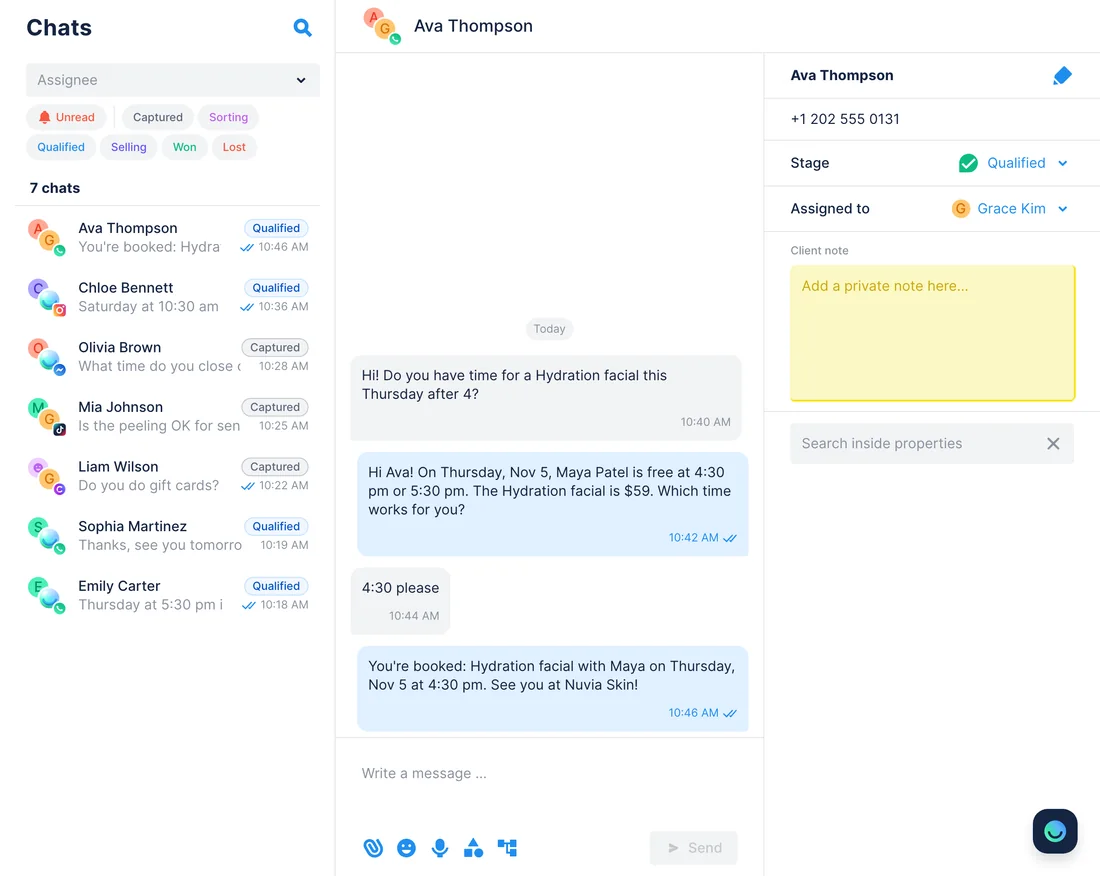
WhenThe AI Agent books visits right in the chat, and your team plans its week from Pipedrive's activities.
- Chatfuel MCP reads the week's appointments with
list_bookings: time, service, specialist, client name and status. - Pipedrive MCP matches each client to a contact with
searchPersons, andgetActivitiesshows which visits are already there, so none is added twice. addActivityschedules each new visit on the matching contact at the booked time, with the service and specialist in the subject.updateActivitymarks the visits the client attended as done. Names Pipedrive doesn't know come back as a list for you to check.
ResultPipedrive's calendar shows the same visits as Chatfuel, and each contact's history includes the treatments they booked through the chat.
AskCopy this week's Chatfuel appointments to Pipedrive as activities on each client's contact, skip the ones already there and mark attended visits as done.
Pipedrive products → prices in the AI Agent's answers
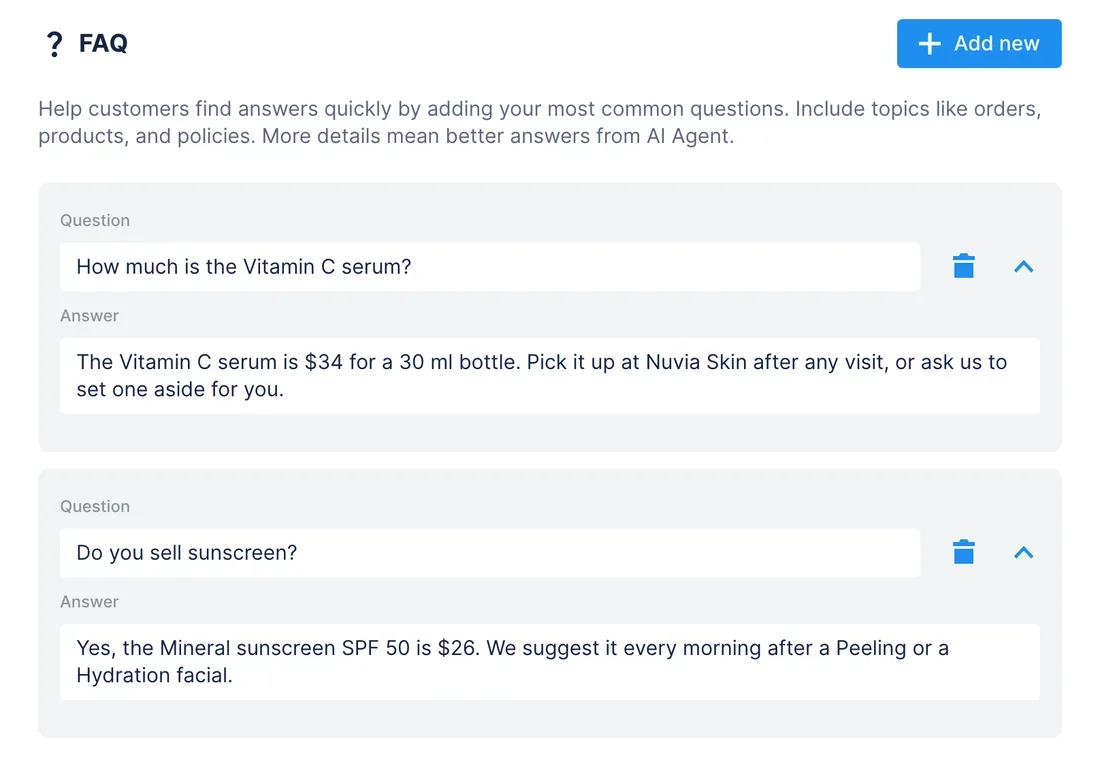
WhenYou add aftercare products to your Pipedrive catalog or change a price there, and customers ask about them in the chat.
- Pipedrive MCP reads the catalog with
getProducts. - Chatfuel MCP reads the current FAQ with
get_knowledge_baseto see which products already have an answer. add_faqwrites an answer for each new product, andupdate_faqrewrites the answers whose price changed.test_replyasks the AI Agent about a product in a sandbox chat, so you check the answer first.
ResultAnyone asking about the serum or the sunscreen gets the price your sales team has in Pipedrive, not last month's.
AskRead our products in Pipedrive and compare them with the Chatfuel FAQ. Add answers for products that are missing, fix any price that changed, then test what the AI Agent says about the Vitamin C serum.
Quiet deal in Pipedrive → a follow-up in the customer's chat
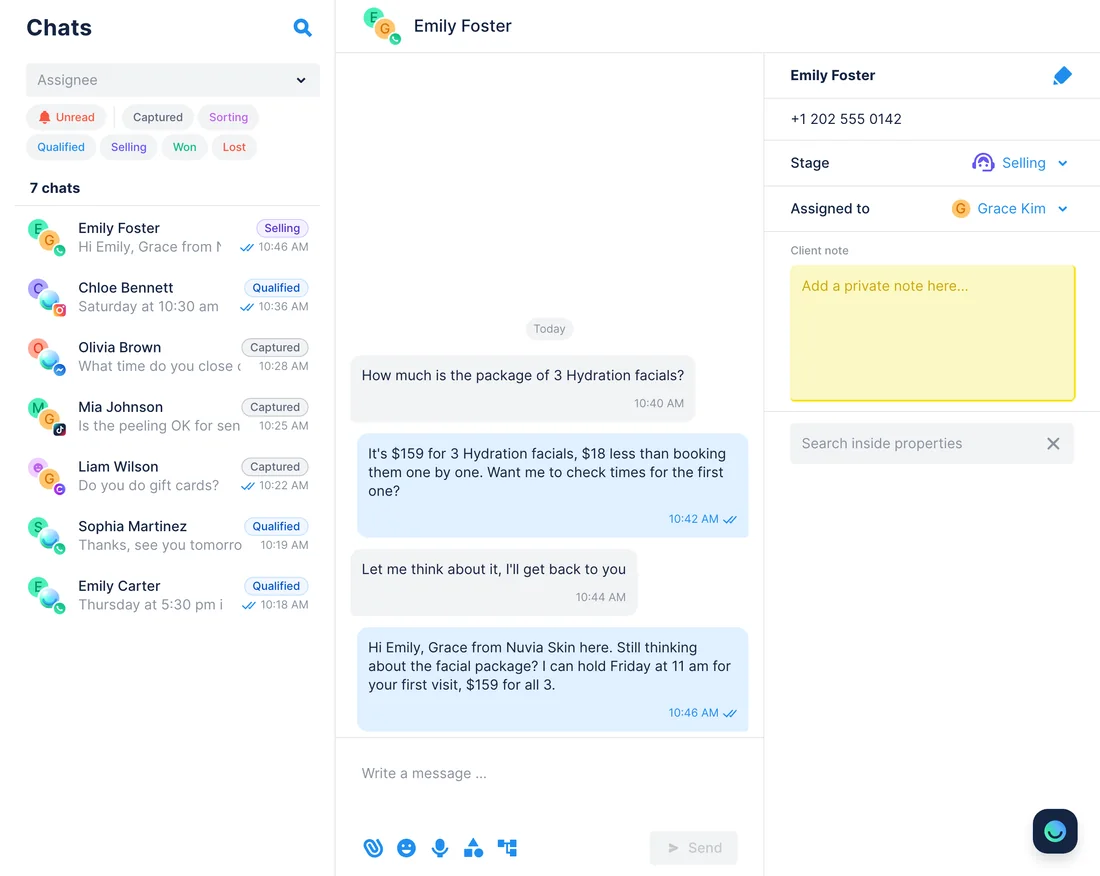
WhenA deal has had no update for a few days, and the customer last wrote to you on Instagram or WhatsApp.
- Pipedrive MCP lists open deals with
getDealsand picks the ones with no update for 3 days. - Chatfuel MCP finds each customer's chat by name with
list_chatsand reads the last messages withget_chat. - The assistant drafts a follow-up, and
send_chat_messagesends it after your yes. WhatsApp accepts it within 24 hours of the customer's last message, Instagram and Messenger within 7 days; for an older chat you're told nothing was sent. - For every message that went out,
addNoterecords the follow-up on the deal.
ResultDeals that went quiet get a personal nudge in the chat the customer already uses, and Pipedrive shows when it happened. Chats past the reply window come back as a list to call or email. Each sent message puts the chat in live chat, so ask the assistant to hand it back to the AI Agent after the customer replies.
AskFind open Pipedrive deals with no update for 3 days. For each one, find the customer's Chatfuel chat and draft a short follow-up; I'll approve every message before it goes. Then log a note on each deal you messaged.
How to connect
Connect Chatfuel MCP
Find Chatfuel in Claude's or ChatGPT's directory, or give Cursor its server URL, then log in to your Chatfuel account.
Connect Pipedrive MCP
Pick Pipedrive from the directory in Claude or ChatGPT, or add https://mcp.pipedrive.ai/mcp in Cursor. Pipedrive shows the permissions in a pop-up; click Allow and install.
Use both in one request
One request can read Chatfuel and write to Pipedrive, or the other way round. Chatfuel waits for your yes before it changes the bot or messages a customer; Pipedrive acts with your user's permissions and logs each change.
- In Claude, find Chatfuel under Connectors, connect it and log in.
- Open Customize › Connectors, search for Pipedrive and click Connect.
- Sign in to Pipedrive, check the permissions and click Allow and install. To get every Pipedrive tool in a chat, turn on loading all tools in the connector's settings.
- Chatfuel MCP
- claude.ai/directory/chatfuel
- Pipedrive MCP
- From Claude's directory
- In ChatGPT, add the Chatfuel plugin from Plugins and log in.
- Find Pipedrive in ChatGPT's directory and connect your account; in Pipedrive's pop-up, click Allow and install.
- Pipedrive's guide also describes a manual route: on a Pro, Business, Enterprise or Edu plan, turn on developer mode, create a plugin named Pipedrive MCP with https://mcp.pipedrive.ai/mcp and add it to the chat.
- Chatfuel MCP
- chatgpt.com/plugins
- Pipedrive MCP
- From ChatGPT's directory
- Cursor: add a server named Chatfuel with https://mcp.chatfuel.com/panel in ~/.cursor/mcp.json.
- Add Pipedrive to the same file with "url": "https://mcp.pipedrive.ai/mcp". Pipedrive has no Cursor guide but says other assistants connect with this URL.
- On first use, sign in to Pipedrive in the browser and click Allow and install.
- Chatfuel MCP
https://mcp.chatfuel.com/panel- Pipedrive MCP
https://mcp.pipedrive.ai/mcp
What you need
- A Chatfuel bot where the AI Agent already answers customers on at least one channel: WhatsApp, Instagram, Messenger, TikTok or your website.
- A Pipedrive account on any plan. MCP use counts against your plan's token limits, and extra tokens can be bought.
- Permission to use connectors in Claude, or to install apps in your Pipedrive account. The assistant sees and changes only what your Pipedrive user can.
- Claude, ChatGPT or Cursor. Pipedrive's manual ChatGPT setup needs a Pro, Business, Enterprise or Edu plan.
- For the booking use case, services and specialists set up in Chatfuel, so the AI Agent books in the chat.
Limits
- Nothing runs on its own. Neither server watches the other, so leads, bookings and prices move only when you ask the assistant.
- Chatfuel MCP returns names, channels, stages and messages, not phones or emails. A Pipedrive contact is matched by name, or by an email or phone the customer typed in the chat, so check repeated names.
- Pipedrive's MCP tools delete nothing, and the assistant works inside your user's visibility settings.
- Pipedrive counts MCP use against your plan's token limits and doesn't publish how many MCP tokens each plan includes.
- A follow-up sent with send_chat_message reaches WhatsApp only within 24 hours of the customer's last message, Instagram and Messenger within 7 days. Sending also moves the chat to live chat, so the AI Agent stops answering there until you hand it back.
- Chatfuel's product catalog changes only in the dashboard; from Pipedrive, prices reach the AI Agent through the FAQ.
FAQ
Yes. Pipedrive launched its own server, https://mcp.pipedrive.ai/mcp, on June 30, 2026 and maintains it. It's included in every Pipedrive plan, and Claude lists it in its connector directory.
Contacts, organizations, leads, deals, activities, notes, products and projects (with the Projects add-on). It can create and edit them but has no tool to delete anything, and every change lands in Pipedrive's change log.
list_bookings gives the client's name with the time, service, specialist and status, but no phone or id. The assistant looks the name up with searchPersons, so ask it to list repeated or unknown names for you to check.
One approved message at a time, and only in a chat still open for replies: 24 hours after the customer's last WhatsApp message, 7 days on Instagram and Messenger. Chatfuel MCP has no broadcasts; WhatsApp templates go out from the Chatfuel dashboard.
Not always. Pipedrive notes that Claude may load only some of its tools when a chat starts; turn on loading all tools in the Pipedrive connector's settings. When Pipedrive adds tools, refresh the tools list.
Pipedrive publishes guides for Claude and ChatGPT only and says other assistants connect with the server URL. In Cursor, add https://mcp.pipedrive.ai/mcp to mcp.json and sign in to Pipedrive when Cursor asks.
More integrations


Connect Chatfuel MCP
Start a free trial, add Chatfuel to your assistant and ask about Pipedrive and your chats in one place.